
Disable CORS in Chrome for Video Playback Testing
1. Introduction
When testing video sources like HLS or MP4, have you encountered the error Access to video at ... from origin ... has been blocked by CORS policy in the browser console? This article will guide you on how to quickly disable Chrome’s cross-origin security restrictions via startup parameters, allowing you to complete development and testing efficiently.
2. Background: Why Can’t Videos Play Due to Cross-Origin (CORS) Issues?
Modern browsers (like Chrome) follow the Same-Origin Policy. This means that when a web page (origin) attempts to load resources such as videos or fonts from another origin (different domain, protocol, or port), the browser will intercept the request unless the resource server explicitly returns HTTP headers allowing access for that origin (e.g., Access-Control-Allow-Origin: *).
Common development scenarios:
Your webpage runs on http://localhost:8080.
You attempt to play a video located at https://cdn.another-domain.com/video.mp4 or a local absolute path like file:///D:/videos/test.m3u8.
Because the origins differ, and the video server has not correctly configured CORS response headers, the browser blocks the video load, causing the player to display a black screen or throw an error.
3. Solution: Launch Chrome with the --disable-web-security Parameter
For local development and testing environments, the fastest solution is to make Chrome temporarily ignore the Same-Origin Policy. Please note: This method is strictly for development and debugging. Absolutely do not use it for daily browsing, as it significantly reduces browser security.
Core Parameter Analysis
--disable-web-security: The core command used to disable the Same-Origin Policy.--user-data-dir=<some_path>: A parameter that must be specified simultaneously. It instructsChrometo save browsing data (such as cache, history) to a new, isolated user data directory. This avoids conflicts with your defaultChromeprofile.
Detailed Operation Steps (Windows System Example)
The following steps show how to create a dedicated Chrome shortcut with cross-origin restrictions disabled.
-
Create a shortcut on the desktop: Right-click on an empty space on the desktop, select “New” -> “Shortcut”.
-
Enter the target for the shortcut: In the “Type the location of the item” box, enter the following command (adjust according to your actual Chrome installation path):
"C:\Program Files\Google\Chrome\Application\chrome.exe" --disable-web-security --user-data-dir="D:\programdata\chrome_test"-
"C:\Program Files\...\chrome.exe": The full path to theChromebrowser, wrapped in quotes to prevent issues if there are spaces in the path. -
--disable-web-security: Disables web security features. -
--user-data-dir="D:\programdata\chrome_test": Specifies a new user data directory; you can set this to any readable/writable path.
-
Name the shortcut: Give this shortcut a clear name, such as
Chrome-TestMode(DisableCORS). -
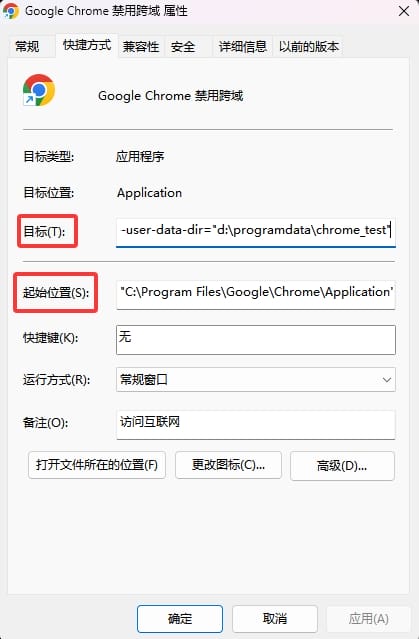
(Optional) Set the Start in location: Right-click the newly created shortcut and select “Properties”. In the “Shortcut” tab, set “Start in” to the
Chromeinstallation directory. This helps avoid potential path issues:
C:\Program Files\Google\Chrome\Application completed, the Properties window should look similar to the image below (illustrative): Example of Chrome shortcut properties
-
Launch and test: Double-click your newly created shortcut to launch
Chrome. At this point, the browser will usually display a prominent warning message, such as “You are using an unsupported command-line flag:--disable-web-security. Stability and security will suffer”. -
Verification and testing: Visit your test page again in this mode; the video cross-origin errors should be gone, and playback should work normally.
4. Important Notes and Best Practices
-
1、Security Warning: A browser running in this mode has no security protection and is highly vulnerable to attacks from malicious websites. use it for testing known, trusted local or development environment pages, and close it immediately after use.
-
2、User Data Isolation: Using a separate
--user-data-diris critical. This ensures your testing behavior (such as temporarily installed extensions or generated cache) does not pollute your mainChromeprofile. -
3、For macOS/Linux Users: The method is similar. Execute the following command in the Terminal:
open -n -a "Google Chrome" --args --disable-web-security --user-data-dir="/tmp/chrome_dev_test" -
4、Production Environment Solution: This method is just a “workaround” for the development stage. The ultimate fix is to correctly configure CORS response headers on the server or CDN hosting the video files, for example by returning
Access-Control-Allow-Origin: *or your website’s specific domain.
5. Conclusion
By creating a Chrome shortcut with the --disable-web-security parameter, developers can quickly bypass the frustrating CORS restrictions and focus on testing the video player’s functional logic and compatibility. Please strictly keep the security guidelines in mind and use this method as a temporary tool in your development workflow.