
Parameter Configuration
1. Player Interface Description
To facilitate the explanation of the subsequent parameters, the figure below shows a screenshot of a player instance:
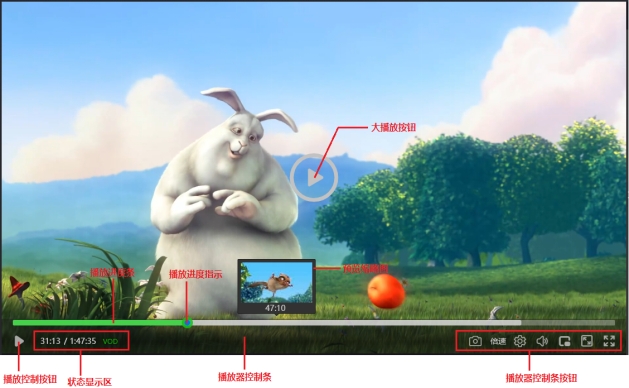
2. Configuration Overview
When creating a zwplayer object, we need to pass a JS object as a parameter to the zwplayer constructor. A sample JS object with relatively complete properties for the constructor parameter is shown below (in subsequent new versions, members may be added due to feature enhancements, but existing property names defined in previous versions will not be removed or modified, ensuring the stability of existing APIs for seamless replacement upgrades).
new ZWPlayer({
  // Basic Configuration
  playerElm: '#player-holder',
  url: 'https://example.com/video.mp4',
  videostyle: "width:100%;height:100%;",
  poster: 'https://example.com/poster.jpg',
  fluid: true,
  ratio: '16:9',
  // Playback Control
  autoplay: true,
  muted: false,
  reconnect: true,
  isLive: false,
  // Control Bar Display Buttons
  infoButton: true,
  speedButton: true,
  optionButton: true,
  snapshotButton: true,
  useProgressTooltip: true,
  chapterButton: true,
  enableDanmu: true,
  fixedControlbar: true,
  defVolume: 61.25,
  hideControlbarTimeout: 10000,
  // Advanced Features
  enableDanmu: true,
  castButton: true,
  zoomButton: true,
  annotationButton: true,
  thumbnails: {
    url: "http://example.com/thumbnail.jpg",
    width: 128,
    height: 72,
    row: 7,
    col: 7,
    total: 43
  },
  chapters: 'http://example.com/chapters.json',
  annotations: 'http://example.com/annotations/movie_annotation.json',
  subtitles: 'http://example.com/subtitles/movie.vtt',
  playlistButton: true,
  playlist: {
    url: 'http://example.com/playlist/my_playlist.json'
  },
  logo: {
    icon: 'logo.png',
    dock: 'left',
    x: '5%',
    y: '5%',
    width: '30%',
    height: '30%',
    opacity: 70
  },

  // Feature Restrictions
  disablePlayBtn: false,
  disableSeek: false,
  disableFullscreenWin: false,
  disablePicInPic: false,
  disableVolumeControl: false,
  autoSmallWindow: true,
  lostFocusPause: true,

  // Callback Functions
  onready: function() {
    console.log("Player ready");
  },
  onmediaevent: function(event) {
    // Handle media events
  },
  sendDanmu: function(text) {
    // Send Danmu
  }
});
For the zwplayer constructor parameters, except for playerElm and url which are required, all others are optional. Please set them according to specific needs.
3. Basic Configuration
3.1 *playerElm - Player Container
- Type:
string|DomObject - Default: None
- Required
- Description:
Used to specify the docking element for the player. It should be the ID of a DIV or a DOM object of DIV type. If a string parameter is passed, it can be with or without the “#” prefix; both will be treated as the element ID. If it is a DOM object, the DOM object must be of DIV type. If the passed
playerElmis not an existing DOM,zwplayerwill attempt to create a new DIV type DOM element as the docking point for the player. - Example:
'mse'or'#mse'ordocument.getElementById('mse')
new ZWPlayer({
    playerElm: '#mse',
    ...
});
3.2 *url - Source Address
-
Type:
string|Object -
Default: None
-
Required
-
Description: The access address of the media stream. The following input methods are supported:
- String URL: Directly pass the video address (MP4, HLS, FLV, DASH, WebRTC, etc.).
- JS Object: Pass an object containing rich configurations to simultaneously set video, thumbnails, chapters, annotations, subtitles, playlist, etc. Please refer to Source URL Detailed Explanation.
// Method 1: Simple String
new ZWPlayer({
    playerElm: '#mse',
    url: 'https://example.com/video.mp4'
});

// Method 2: JS Object (Supports simultaneous configuration of multiple resources)
new ZWPlayer({
    playerElm: '#mse',
    url: {
      src: 'https://example.com/video.mp4',
      thumbnails: 'https://example.com/thumbnails/movie_thumbnail.json',
      chapters: 'https://example.com/chapters/movie_chapter.json',
      annotations: 'https://example.com/annotations/movie_annotation.json',
      subtitles: 'https://example.com/subtitles/movie.vtt'
    }
});

// Method 3: Pass ZWMAP Playlist JSON URL (Player automatically identifies)
new ZWPlayer({
    playerElm: '#mse',
    url: 'https://example.com/playlist/my_playlist.json'
});

// Method 4: Directly pass ZWMAP Playlist JSON Object (No need to host file)
new ZWPlayer({
    playerElm: '#mse',
    url: {
      zwp_protocol: 'ZWMAP/1.0',
      zwp_type: 'playlist',
      title: 'My Playlist',
      groups: [
        {
          name: 'Group 1',
          items: [
            { name: 'Video 1', url: 'https://example.com/video1.mp4' }
          ]
        }
      ]
    }
});
Playlist
The url parameter supports two ways to pass a playlist:
- JSON File URL: Points to a
.jsonfile conforming to the ZWMAP protocol; the player automatically identifies and loads it. - Inline JSON Object: Pass the ZWMAP playlist object directly as the
urlparameter without needing to host an extra file, suitable for dynamically generated playlists.
The player will automatically identify zwp_type: "playlist" and load in playlist mode without extra configuration. The player automatically renders the grouped list UI, supports auto-playing the next item, and remembers playback progress and favorites.
The playlist JSON must conform to the playlist type of the ZWMAP protocol (zwp_type: "playlist"), supporting group structures and associated resources for each video item.
ZWMAP Playlist JSON Example:
{
  "zwp_protocol": "ZWMAP/1.0",
  "zwp_type": "playlist",
  "zwp_version": "1.0",
  "id": "demo_list_001",
  "title": "Demo Playlist",
  "autoPlayNext": true,
  "groups": [
    {
      "id": "g1",
      "name": "Tutorial Videos",
      "expanded": true,
      "items": [
        {
          "id": "v1",
          "name": "Lesson 1: Basics",
          "url": "https://cdn.example.com/video/lesson1.mp4",
          "type": "mp4",
          "poster": "https://cdn.example.com/poster/lesson1.jpg",
          "subtitle": "https://cdn.example.com/sub/lesson1.vtt",
          "chapter": "https://cdn.example.com/chapter/lesson1.json",
          "annotation": "https://cdn.example.com/annotation/lesson1.json",
          "thumbnails": "https://cdn.example.com/thumbnail/lesson1.json"
        },
        {
          "id": "v2",
          "name": "Lesson 2: Advanced Content",
          "url": "https://cdn.example.com/video/lesson2.mp4",
          "type": "mp4",
          "subtitle": [
            "https://cdn.example.com/sub/lesson2_zh.vtt",
            "https://cdn.example.com/sub/lesson2_en.vtt"
          ]
        }
      ]
    },
    {
      "id": "g2",
      "name": "Live Channels",
      "expanded": false,
      "items": [
        {
          "id": "live1",
          "name": "CCTV-1",
          "url": "https://live.example.com/cctv1.flv",
          "type": "flv",
          "isLive": true
        }
      ]
    }
  ]
}
Playlist Field Description:
| Field | Type | Required | Description |
|---|---|---|---|
zwp_protocol |
string | Yes | Protocol identifier, fixed to "ZWMAP/1.0" |
zwp_type |
string | Yes | Fixed to "playlist" |
id |
string | No | Unique identifier for the playlist, used to isolate progress and favorites |
title |
string | No | Playlist title |
groups |
array | Yes | Array of groups, each containing name, expanded, items |
Video Item Field Description:
| Field | Type | Required | Description |
|---|---|---|---|
url |
string | Yes | Video URL |
name |
string | No | Video display name |
type |
string | No | Video type: mp4/hls/dash/flv/webrtc/auto (default) |
isLive |
boolean | No | Whether it is a live stream, default false |
poster |
string | No | Poster image URL |
subtitle |
string | array | No | Subtitle file URL, supports single or array (multi-language subtitles) |
chapter |
string | No | Chapter JSON file URL |
annotation |
string | No | Interactive annotation JSON file URL |
thumbnails |
string | No | Thumbnail JSON file URL |
epg_now |
string | No | Current program name (EPG information) |
3.3 videostyle - Player Style
- Type:
string - Default: None
- Description: CSS set on the player’s built-in Video object. Must be a valid CSS description statement.
- Example:
"width:100%;height:100%;"
new ZWPlayer({
    playerElm: '#mse',
    url: 'https://example.com/video.mp4',
    videostyle: "width:100%;height:100%;",
});
3.4 poster - Poster
- Type: String
- Default: None
- Description: Set the poster, i.e., the image displayed in the video area of the player when the player is stopped.
3.5 fluid - Fluid Layout
- Type: Boolean
- Default: false
- Description: Set to fluid layout to make the player width follow the width changes of the parent element, and the height changes according to the ratio of height to width in the configuration items (if player width and height are not set, it is calculated based on internal default values). The aspect ratio calculation algorithm is as follows:
- If the
ratioproperty is set, theratioproperty value is the aspect ratio. - If the
ratioproperty is not set, the ratio of width to height is calculated to get the aspect ratio. - If width and height properties are not set, the aspect ratio defaults to
16:9.
- If the
3.6 ratio - Aspect Ratio
- Type: Number | String
- Default: 16:9
- Description: Set the aspect ratio of the player. The format is “width:height”, e.g., “16:9”. Takes effect when fluid layout is enabled.
3.7 width - Width
- Type: Number | String
- Default: None
- Description: Player width. If a number type parameter is passed, the player internally defaults to adding the unit ‘px’. If a string type parameter is passed, it is directly assigned to the player container width style property.
3.8 height - Height
- Type: Number | String
- Default: None
- Description: Player height. If a number type parameter is passed, the player internally defaults to adding the unit ‘px’. If a string type parameter is passed, it is directly assigned to the player container height style property.
3.9 lang - Language Setting
-
Type: String
-
Default: Automatically detected based on browser interface language. If it is Chinese, it is Chinese; otherwise, it is English.
-
Description: Set the interface language of the player. Supports multi-language localization, affecting all text content such as the player control bar, prompt messages, and menus.
-
Supported Languages:
'zh-CN'or'zh': Simplified Chinese'en-US'or'en': English
4. Playback Control
4.1 autoplay - Autoplay
- Type: Boolean
- Default: false
- Description: Whether to start playback automatically. If set to false, the user must click the play button to start playback.
- Note: Under the restrictions of the latest browsers, autoplay on new pages needs to be combined with
mutedset to true. - Feature:
zwplayerhas a built-in automatic detection function. If this parameter is set to true, when the player attempts to open audio playback and fails, it will automatically set the player to muted to start playback. Subsequently, the user needs to click theEnable Soundprompt button to turn on the sound. - Reference: ZWPlayer Autoplay Complete Guide: Solving Mute Issues and Scenario-Based Configuration
4.2 disableMutedConfirm - Disable Autoplay Mute Confirmation Dialog
- Type: Boolean
- Default: true
- Description: Whether to disable the mute confirmation modal triggered by the browser’s autoplay policy.
- Detailed Behavior:
When the player’s
autoplayproperty is set to true,zwplayerwill attempt to start playback automatically. However, modern browser autoplay policies usually require video with sound to play only after user interaction with the page. To cope with this policy and provide a seamless experience,zwplayerhas a built-in automatic detection mechanism:
-
· Detection and Fallback: If autoplay with sound fails due to browser policy, the player will automatically set the video to muted state and start playback.
-
· User Prompt (Default Behavior): Subsequently, the player will pop up a modal prompt explaining to the user: “Due to browser restrictions, the video is playing muted. Please click the screen to enable sound.” This prompt requires the user to manually click to close it, ensuring the user is aware of the current silent state and avoiding confusion.
The disableMutedConfirm property is used to control the display of this prompt:
- · When set to false (default), the above modal prompt will appear normally.
- · When set to true, this modal prompt will be disabled. Even if playback switches to muted due to policy restrictions, no prompt requiring interaction will pop up.
Usage Scenario Suggestions:
- · Set to true: Suitable for scenarios pursuing extreme immersion and uninterrupted experience, such as background videos, advertisements, or video displays without audio. Developers need to inform the user of the muted state via the UI or other means themselves.
- · Keep false (default): Suitable for general video playback scenarios where you need to clearly inform the user of the current status and avoid user confusion due to sudden silence, such as news, education, and main site players, which can effectively improve the clarity of user experience.
4.3 muted - Muted
- Type: Boolean
- Default: false
- Description: Whether the player is muted when it starts. In current H5 browsers, if autoplay is set but not muted, the browser may not be able to start playback automatically without user interaction.
4.4 reconnect - Reconnect on Disconnect
- Type: Boolean
- Default: None
- Description: Whether the player reconnects on failure.
truemeans automatic reconnection after playback disconnects. When receiving live streams, it is recommended to set this to true, so that if there is a network failure or server failure, the player will automatically reconnect.
4.5 isLive - Live Stream Flag
- Type: Boolean
- Default: None
- Description: Specifies whether the program source is a live stream. Live streams cannot seek progress or adjust playback rate. In certain situations, it is very useful to disguise a recorded source as a live program. Defaults to automatic detection by the player.
5. Streaming Protocol Configuration
5.1 streamtype - Stream Protocol Type
-
Type: String
-
Default: None
-
Description: Manually specify the stream protocol type. Supports:
httpflv,hls,dash,mpegts,webrtc. This parameter must be specified when the live stream address has no file extension. -
Feature:
zwplayerdetermines the stream protocol through the live stream address extension. The correspondence is as follows:File Extension Corresponding Protocol Description flv http-flv HTTP-FLV streaming protocol m3u8 HLS HTTP Live Streaming protocol mpd DASH Dynamic Adaptive Streaming over HTTP protocol rtc Webrtc Web Real-Time Communication protocol ts mpegts MPEG Transport Stream protocol
However, if the live stream address does not contain an extension, zwplayer will be unable to determine which protocol to use to play the stream. In this case, you must manually specify the stream type.
5.2 useFlv - FLV Priority
- Type: Boolean
- Default: false
- Description:
zwplayersupports live program source objects with multiple protocol types (using a JS object as theurlparameter). A live program source may contain multiple types of streams. For example, a multi-protocol live source may simultaneously include webrtc, http-flv, hls, dash, and other transmission protocol types. If this parameter is set to true, whenzwplayerdetects that the source type contains http-flv streams, it will prioritize using the flv stream for playback; otherwise,zwplayerwill make an automatic decision to select the transmission type with the lowest latency for playback.
5.3 useOldFlv - Enable FLV Old Interface
- Type: Boolean
- Default: false
- Description: When playing Flv type live streams, whether to use the old playback interface. Using the old Flv playback interface,
zwplayerwill not be able to play video streams containing H265/HEVC. This is only for testing compatibility and defaults to false. In new Chrome browsers (and some Safari browsers),zwplayersupports live sources containing H265.
5.4 hasAudio - Contains Audio Stream
- Type: Boolean
- Default: None
- Description: Specifies whether the stream to be played contains an audio stream. If omitted, the player automatically determines whether the URL to be played contains an audio stream. If the URL to be played actually does not contain an audio stream, but
hasAudiois set to true, the player will keep searching for the audio stream in the stream before starting playback. If not found, the player will wait indefinitely. For streams from some surveillance cameras, this parameter can be set to false, so the player will not search for audio streams and playback will start faster.
5.5 hasVideo - Contains Video Stream
- Type: Boolean
- Default: None
- Description: Specifies whether the stream to be played contains a video stream. If omitted, the player automatically determines whether the URL to be played contains a video stream. If the URL to be played actually does not contain a video stream, but
hasVideois set to true, the player will keep searching for the video stream in the stream before starting playback. If not found, the player will wait indefinitely.
5.6 xmc_url - Media Gateway Address
- Type: String
- Default: None
- Description:
xmc_urlis the media gateway address. XMC stands for External Media Coprocessor (Media Gateway for short). Some common streaming protocols, such as rtsp, udp, rtp, etc., cannot be played via current browser H5 video playback because current H5 cannot support raw sockets, so these protocol streams cannot be retrieved. One solution is to use an external server to convert the protocol to http or webrtc protocol, so that the H5 player can play rtsp, udp, rtp streams. Using XMC,zwplayersupports playing rtsp, udp and other live streams in the browser, which is very helpful for playing rtsp streams output by most surveillance camera manufacturers. The co-processing protocol supported byzwplayeruses the websocket protocol. For details, please refer to Playing RTSP Streams.
6. Control Bar Display Configuration
6.1 controlbar - Player Control Bar
- Type: Boolean
- Default: true
- Description: Whether to display the player control bar, i.e., show the player control bar. To facilitate user operation, players usually have a playback control bar. The playback control bar contains various buttons, such as play, pause, fullscreen, etc. In some application scenarios, if the playback control bar is not needed, this parameter can be set to false. Note that since the native player control bar that comes with the H5 browser’s video tag is not satisfactory, zwplayer has built a custom player control bar that presents a consistent appearance across all browsers. The various buttons on the custom player control bar support configuration for display.
6.2 nativecontrols - Native Playback Control Bar
- Type: Boolean
- Default: false
- Description: Whether to use the browser’s native playback control bar. If true, the native playback control bar of the browser’s video element is used. The appearance of the native playback control bar may vary in different browsers. If you need users to see a consistent appearance across different browsers, please do not set this property to true. When set to false,
zwplayercreates a custom playback control bar to control playback and disables the native playback control bar. Using the native playback control bar is not recommended.
6.3 infoButton - Media Info Button
- Type: Boolean
- Default: false
- Description: Whether to display the media info button on the playback control bar. The playback info button is used to display relevant information about the currently playing media.
6.4 speedButton - Playback Rate Control Button
- Type: Boolean
- Default: false
- Description: Whether to display the playback rate control button on the playback control bar. Playback rate control is only effective for recorded programs. If it is a live program, even if set to true, the player will not display the playback rate control button.
6.5 optionButton - Player Settings Button
- Type: Boolean
- Default: false
- Description: Whether to display the player settings button on the playback control bar. If true, a settings button will appear on the playback control bar. When the mouse moves over the settings button, a settings menu will pop up. Currently, settings include image rotation, loop playback control, and video chroma adjustment. Settings features may be richer in future versions.
6.6 snapshotButton - Snapshot Button
- Type: Boolean
- Default: false
- Description: Whether to display the snapshot button on the playback control bar. Clicking the snapshot button allows users to capture the current playing video image with one click.
6.7 enableDanmu - Danmu Function
- Type: Boolean
- Default: false
- Description: Whether to enable the built-in Danmu (bullet comment) display function. Danmu, as an interactive control function for current video playback, is supported by major video websites. Using
zwplayer’s Danmu function, you can achieve the same functionality as major video websites. If this item is not set, thezwplayerplayer cannot display Danmu.
6.8 useProgressTooltip - Progress Bar Preview Display
- Type: Boolean
- Default: true
- Description: Whether to enable tooltips on the playback progress bar. If enabled, when the user moves the mouse over the playback progress bar, an event tooltip will be displayed following the mouse pointer. For video-on-demand content with thumbnails, keep this parameter true to display thumbnail previews in the tooltip.
6.9 autoSmallWindow - Auto Small Window
- Type: Boolean
- Default: false
- Description: Automatically switch to a pop-up small window for playback when the window scroll is about to hide the player. When the page is long and has a scroll bar, if the user scrolls the page,
zwplayermay be scrolled out of the page and hidden. If this parameter is set to true, when this happens,zwplayerautomatically switches to small window playback. Note: The small window is different from Picture-in-Picture. Picture-in-Picture means the video small window floats above all windows on the current desktop, while small window playback means the video small window is only inside the current browser tab and does not float out.
6.10 fixedControlbar - Fixed Display Control Bar
- Type: Boolean
- Default: true
- Description: Whether to always display the player control bar. If set to false, the control bar automatically hides after the timeout set by
hideControlbarTimeout.
6.11 timeFormat - Time Display Format
- Type: String
- Default:
's' - Description: Controls the display precision of the timecode on the player control bar.
's'displays to seconds (e.g.,01:30),'ms'displays to milliseconds (e.g.,01:30.500). Suitable for scenarios requiring precise time positioning, such as subtitle editing and video annotation.
new ZWPlayer({
    playerElm: '#mse',
    url: 'https://example.com/video.mp4',
    timeFormat: 'ms'  // Display millisecond precision: 00:01:30.500
});
6.12 defVolume - Default Volume
- Type: Number
- Default: 61.25
- Description: The default volume percentage when the player starts, ranging from 0–100. The player will remember this value, and user adjustments via the interface will override this default value.
6.13 hideControlbarTimeout - Control Bar Auto Hide Timeout
- Type: Number
- Default: 10000
- Description: The timeout for the control bar to auto-hide, in milliseconds. When
fixedControlbaris set to false, the player automatically hides the control bar after no user operation for this duration. Default is 10 seconds.
6.14 castButton - Cast Button
- Type: Boolean
- Default: false
- Description: Whether to display the cast button on the playback control bar. The casting function uses the browser’s native Cast API (such as Chromecast, AirPlay) to cast the current video to supported devices for playback. The button only appears when the browser supports the casting protocol.
6.15 zoomButton - Magnifier Button
- Type: Boolean
- Default: false
- Description: Whether to display the magnifier button on the playback control bar. Once enabled, users can click the magnifier button to enter zoom mode, using the mouse wheel or dragging to magnify local details of the video image. Suitable for scenarios such as teaching demonstrations and medical imaging where observing details is necessary.
6.16 annotationButton - Annotation Edit Button
- Type: Boolean
- Default: Defaults to true when the
annotationsproperty is configured, otherwise false - Description: Whether to display the annotation edit button on the playback control bar. This button is used to open the online annotation editor to visually edit interactive annotations for the current video. This button only appears when the
annotationsparameter is configured, and can be disabled by explicitly setting it tofalse.
6.17 localPlayback - Local File Playback
- Type: Boolean
- Default: false
- Description: Whether to enable local video/audio file playback. When set to true, the player will display a file selection button, allowing users to select local files by clicking the button or directly dragging files into the player area for playback.
- Features:
- Drag & Drop Support: Users can drag video/audio files directly into the player area.
- File Selection Button: Displays a file icon, clicking it opens a file selection dialog.
- Smart MIME Type Detection: Automatically recognizes file formats to ensure accurate playback.
- Supported Formats: MP4, WebM, MOV, MKV, M4V, OGG, FLAC, WAV, M4A, MP3, OPUS, and other natively browser-supported formats.
- Prompt Interface: Displays a friendly prompt message to guide the user to select a file when no video is loaded.
6.18 segmentButton - Segment Selection Feature
- Type: Boolean
- Default: false
- Description: Whether to enable the segment selection button. This feature allows users to select specific segments of the video for loop playback; if a segment is selected during recording, only that segment’s content will be recorded.
- Features:
- Drag Segmentation: Can drag segment start and end time points via sliders on the progress bar.
- Time Markers: Displays segment start and end times with millisecond precision.
- Live Limitation: Only available in non-live mode (segment selection is not activated when
isLiveis true). - Segment Loop: Supports loop playback within the selected segment.
- Use Cases: Suitable for teaching videos, meeting recordings, and other scenarios where specific time periods need focused viewing.
6.19 recordButton - Recording Feature
- Type: Boolean
- Default: false
- Description: Whether to enable the video recording feature. When set to true, the player control bar will display a recording button, allowing users to record the currently playing video content or extract audio only.
- Features:
- Record Button: Displays a recording icon, click to start/stop recording.
- Recording Settings: Provides recording configuration options in the options menu: Always Ask, Full Recording, Audio Only.
- Status Indicator: The button displays different states during recording; a red dot indicator for full recording, a green dot for audio-only recording.
- Recording Format: Full recording format is mp4, audio-only recording format is m4a.
- Recording Save: After stopping recording, the file is automatically downloaded and saved locally.
- Technical Requirements: Browsers using the Chrome engine are recommended; support may be limited in some browsers.
6.20 vr - VR / 360° Panoramic Video
- Type: Boolean | String | Object
- Default: false
- Description: Whether to enable VR / 360° panoramic video support. Supports quick shorthands
vr: true(forced 3D start, 0ms initial frame anti-flash) orvr: 'auto'(universal smart auto-detect mode: 2D for normal videos, auto-VR for 2:1 panoramas); or an object for fine-grained configuration of mode, controlbar button, and camera angles. - Usage:
// 1. Forced 3D start (explicitly specified VR video, 0ms anti-flash) vr: true // 2. Universal smart auto-detect (2D for normal videos, auto 3D for 2:1 panoramas) vr: 'auto' // 3. Custom mode & camera angles vr: { mode: 'auto', yaw: 90, pitch: -10, fov: 80 } // 4. Enable 3D rendering, but hide VR button on controlbar (clean UI mode) vr: { mode: 'force', button: false } - Config Object Fields (optional when vr is an object):
mode(String, default ‘force’): Trigger mode:'force': Forced 3D mode (pre-hides 2D view and pre-loads 3D renderer for 0ms seamless viewing).'auto': Smart auto-detect mode (checks aspect ratio ≈ 2:1 onloadedmetadatabefore activating VR; normal videos stay in 2D).'manual': Manual-only mode (does not auto-activate; renders VR button on controlbar for manual toggling).
button(Boolean, default true): Whether to render the VR button and menu on the controlbar (setfalseto hide button while keeping VR 3D rendering).yaw(Number, degrees, default 0): Initial horizontal heading. 0 = front, positive = right, range [-180, 180].pitch(Number, degrees, default 0): Initial vertical tilt. 0 = level, positive = up, range [-90, 90].fov(Number, degrees, default 75): Initial field of view. 30 = telescope/zoom-in, 100 = wide-angle, range [30, 100].yawOnly(Boolean, default false): Lock pitch to horizontal-only viewing (common for live streams).autoRotate(Boolean, default false): Desktop slow auto-rotation when idle, interrupted by any input.
- Features:
- VR Button: A dropdown menu to activate/deactivate VR and open VR view settings.
- View Settings Panel: Sliders for Yaw / Pitch / FOV with a live overhead-circle + side-arc preview; drag the scene and the panel syncs in real time. “Copy Config” button outputs the current view as a
vr: {...}snippet for reuse. - Smart Detection: Under
mode: 'auto', equirectangular videos (2:1 aspect ratio) auto-activate VR, while standard 16:9 / 4:3 videos stay in normal 2D playback. - Input: Mouse drag (desktop), single-finger swipe drag + two-finger pinch zoom (mobile, 100% cross-platform stable), arrow keys.
- Technical Requirements: WebGL support required. Cross-origin video sources must serve CORS headers and the
<video>element must setcrossOrigin="anonymous", otherwise the VR texture is tainted (black screen). Three.js (~500KB, gzipped ~127KB) is loaded on-demand only when VR is activated — zero impact when disabled.
7. Feature Restrictions Configuration
7.1 disablePlayBtn - Disable Play Button
- Type: Boolean
- Default: false
- Description: Whether to disable the play button. In some application scenarios, users need to be forced to watch a program and are not allowed to pause during playback. In this case, this parameter needs to be set to true. If set to true, the user cannot pause playback by clicking the video, pressing the Space key, or clicking the play/pause button on the player toolbar during video playback.
7.2 disableSeek - Disable Seek Bar
- Type: Boolean
- Default: false
- Description: Whether to disable dragging the progress bar during playback. In some application scenarios, users need to be forced to watch the entire program, and are not allowed to move forward or backward during playback. In this case, this parameter needs to be set to true.
7.3 disableFullscreenWin - Disable Web Fullscreen
- Type: Boolean
- Default: false
- Description: Whether to disable web fullscreen. If set to true, the web fullscreen button on the player control bar will not appear, and the user cannot enter web fullscreen mode. The difference between web fullscreen and normal fullscreen is that in web fullscreen, the player only fills the current web page and scales with the web page; in normal fullscreen, the player occupies the entire screen and is located at the topmost layer of the screen it occupies.
7.4 iosWebFullscreen - iOS Web Fullscreen Mode
- Type: Boolean
- Default:
false - Description: Whether to use web fullscreen instead of the iOS native fullscreen API on iPhone. Defaults to
false, using the iOS system’s built-in fullscreen (based on Fullscreen API). When set totrue, the iPhone end will use the player’s built-in web fullscreen mode to avoid the iOS native QuickTime player taking over, which results in the loss of watermarks, subtitles, Danmu, and other features. iPad and non-iOS devices are not affected by this parameter.
new ZWPlayer({
    playerElm: '#mse',
    url: 'https://example.com/video.mp4',
    iosWebFullscreen: true  // Use web fullscreen on iPhone
});
7.5 disablePicInPic - Disable Picture-in-Picture
- Type: Boolean
- Default: false
- Description: Whether to disable the Picture-in-Picture feature. If not explicitly disabled, the player will automatically detect whether the current browser supports Picture-in-Picture. If supported and available, a Picture-in-Picture control button will appear on the player control bar. Clicking this button will switch the current video to Picture-in-Picture mode. In Picture-in-Picture mode, if the user minimizes the current browser, the Picture-in-Picture window will remain on the screen and will not disappear.
7.6 disableVolumeControl - Disable Volume Control Button
- Type: Boolean
- Default: false
- Description: Whether to disable the volume control button. If set to true, the volume control button will not appear on the player control bar. On PC platforms, users cannot control volume via mouse or toggle mute, but can still control volume via the up and down arrow keys. On smartphones, since most phones can control volume via built-in physical buttons, this parameter can be set to true.
7.7 lostFocusPause - Pause on Lost Focus
- Type: Boolean
- Default: None
- Description: Pause playback when the window loses focus. Current mainstream browsers on PC platforms use tabs to support multi-page access. Users can switch between different pages via tabs. Only the page currently at the front gains focus; other pages lose focus and are in the background. By setting this parameter to true,
zwplayercan be made to pause playback when its page loses focus and restart playback when the page regains focus.
8. Media Information Configuration
8.1 thumbnails - Progress Bar Preview Parameters
- Type: Object | String
- Default: None
- Description: Progress bar preview parameters. The preview is a pre-captured video thumbnail used to display preview frames of the video at different times when the user moves the mouse over the progress bar. It is only effective for on-demand programs. The following three input methods are supported:
Method 1: Pass Object Directly
{
  "url": "https://cdn.zwplayer.com/media/ed/thumbnail.jpg",
  "width": 160,
  "height": 90,
  "row": 15,
  "col": 9,
  "total": 131
}
Method 2: Pass ZWMAP JSON Object
{
  "zwp_protocol": "ZWMAP/1.0",
  "zwp_type": "thumbnail",
  "zwp_version": "1.0",
  "thumbnail": {
    "url": "thumbnail.jpg",
    "width": 160,
    "height": 90,
    "col": 10,
    "row": 10,
    "total": 100
  }
}
Method 3: Pass JSON URL Address
thumbnails: 'http://example.com/thumbnails/movie_thumbnail.json'Additionally, dragging and dropping the thumbnail JSON file and sprite image directly onto the player is also supported. The player will automatically match the video with the thumbnail based on the filename. For details, please refer to Progress Bar Preview Image Parameter Description
8.2 chapters - Chapter Information
-
Type: String | Array | Object
-
Default: None
-
Description: Program chapter information. The following input methods are supported:
- URL String: Starts with
httporhttps,zwplayerwill automatically download and parse it remotely. - JSON String: Starts with
[, it will be parsed as a JSON array. - WEBVTT String: Starts with
WEBVTT, it will be parsed in WEBVTT format. - ZWMAP JSON Object: Pass in a ZWMAP protocol object containing
zwp_type: "chapter"directly. - JS Array: Pass in an already-parsed chapter array.
The
chapter(singular) property name is also supported; the player normalizes it internally.Setting this parameter at player initialization is not recommended. The preferred approach is to load it lazily via the
setChaptersmethod after the player starts playback. For details, see Chapter Setup. - URL String: Starts with
-
Chapter Search: After chapters are loaded, click the “Chapter Search” button in the player settings menu to open the chapter search panel. Enter a keyword to filter matching chapter entries in real time; click a search result to jump to the corresponding time point. Searching by chapter title and description is supported.
-
Chapter Loop Playback: In the chapter search panel, each chapter entry has a loop button on its right. Click it and the player will loop within that chapter’s time range; click again to cancel. Useful for repeatedly watching a specific segment in teaching scenarios.
8.3 chapterButton - Chapter Menu Button
- Type: Boolean
- Default: None (automatically enabled once chapters are loaded)
- Description: Controls whether to show the chapter menu button near the time display area of the control bar. When set to
false, the chapter markers on the progress bar are still displayed normally — only the menu button is hidden; chapter data loading is not affected by this parameter.
8.4 annotations - Interactive Annotations
-
Type: String | Object
-
Default: None
-
Description: Video interactive annotation (hotspot) configuration, used to overlay interactive nodes on the video frame. Supports interaction types such as click-to-jump, quizzes, polls, and forms. The following input methods are supported:
Method 1: Pass a ZWMAP JSON URL
annotations: 'https://cdn.example.com/annotations/movie_annotation.json'Method 2: Pass a ZWMAP JSON object
annotations: {
  "zwp_protocol": "ZWMAP/1.0",
  "zwp_type": "annotation",
  "nodes": [
    {
      "id": "node1",
      "type": "button",
      "name": "Click Me",
      "time_range": { "start": 5, "end": 15 },
      "position": { "x": 40, "y": 40, "w": 20, "h": 10 },
      "events": [{ "trigger": "click", "actions": [{ "type": "SEEK_TIME", "target": 30 }] }]
    }
  ]
}
The
annotation(singular) property name is also supported; the player normalizes it internally. In addition, you can drag and drop an annotation JSON file directly onto the player to load it — the player matches it to the video automatically by filename (*_annotation.json). Annotations can be dynamically loaded and unloaded at runtime via theloadAnnotations(url)andunloadAnnotations()methods.
8.5 subtitles - External Subtitles
-
Type: String | Array
-
Default: None
-
Description: External subtitle configuration. Supports VTT, SRT, and BCC (Bilibili JSON) formats. The following input methods are supported:
- URL String: Pass a single subtitle file URL (automatically assigned to the main subtitle track).
- URL Array: Pass multiple subtitle URLs;
posis auto-assigned in array order (the 1st is'1', the 2nd is'2', the rest are only added to the list). - Object Array: Each element may contain
url(required),title(optional), andpos(optional, auto-assigned in order by default).
// Single subtitle
subtitles: 'https://cdn.example.com/subtitles/movie.vtt'

// URL array (pos auto-assigned)
subtitles: ['movie_zh.srt', 'movie_en.srt']

// Object array (pos and title can be specified)
subtitles: [
  { url: 'movie_zh.vtt', title: '中文', pos: '1' },
  { url: 'movie_en.vtt', title: 'English', pos: '2' },
  { url: 'movie_jp.srt', title: '日本語' }
]
pos assignment rules:
'1'is the main subtitle track (auto-rendered),'2'is the secondary subtitle track (auto-rendered); any other value or unspecified means the subtitle is only added to the list and can be manually assigned in the CC menu. The existingaddSubtitle(url, '1')/addSubtitle(url, '2')usage is fully compatible.Subtitle tracks can also be added dynamically at runtime via the
addSubtitle(url, pos, title)method. -
Subtitle Search: After subtitles are loaded, click the “Subtitle Search” button in the player settings menu to open the subtitle search panel. Enter a keyword to filter matching subtitle entries in real time, displaying timestamps and content. Click a search result to jump to the corresponding time point; double-click to locate and play directly. Search results automatically highlight the current subtitle as playback progresses.
-
Subtitle Translation: Click “Subtitle Translation” in the CC subtitle menu to open the subtitle translation panel. This button is displayed only when the
translateApiparameter is configured. After selecting a target language, the player sends the current subtitle to the translation service; once translated, the result is overlaid below the original subtitle and synced to playback progress in real time.
8.6 lyrics - Lyrics
-
Type: String | Array
-
Default: none
-
Description: External lyrics configuration supporting LRC format (with
[mm:ss.xx]timestamps). Same level assubtitles— a top-level field. Rendered only in music mode (mode: 'music'). Supports:- LRC file URL: Pass a lyrics file URL; the player downloads and parses it automatically.
- LRC text line array: Pass LRC text lines directly, no external file needed.
// LRC file URL
lyrics: 'https://cdn.example.com/song.lrc'

// LRC text line array
lyrics: ['[00:01.00]First line', '[00:03.50]Second line', '[00:08.00]Third line']
Rendering features:
- Current lyric line highlighted and enlarged (theme color), auto-centered with smooth scrolling
- Word-level karaoke:
<mm:ss.xx>wordformat fills sung words with theme color in real time - Translation/romanization sub-lines (merged at same timestamp as small, low-opacity sub-lines)
- Click any lyric line to seek to that time and resume playback
- In playlists, each item’s
lyricsfield is loaded and refreshed on track change
You can also dynamically switch lyrics at runtime via
player.setLyrics(lrc).
8.7 translateApi - Subtitle Translation Service URL
- Type: String
- Default: None
- Description: The base URL of the subtitle translation service (the common prefix shared by the
/languagesand/translateendpoints). Once configured, users can activate the subtitle translation panel from the subtitle menu: the player first fetches the selectable language list viaGET <translateApi>/languages, and after the user picks a target language, sends the current subtitle (in SRT format) via POST to<translateApi>/translate; the translated subtitle is then overlaid on the video. You can also implement your own translation backend per the protocol and integrate it with the player. For the full protocol specification, see Subtitle Translation API Protocol; for more usage details, see Subtitle Setup.
new ZWPlayer({
    playerElm: '#mse',
    url: 'https://example.com/video.mp4',
    subtitles: 'https://example.com/subtitles/movie_en.vtt',
    translateApi: 'https://api.example.com/subtitle-api/api'
});
8.8 subtitleDownload - Subtitle Download Button
- Type: Boolean
- Default: None (i.e.
false) - Description: Whether to show a download button after each subtitle entry in the CC subtitle menu. When enabled, users can export a subtitle as an SRT file via the download icon in the menu — useful for scenarios that require saving or further editing subtitle content.
new ZWPlayer({
    playerElm: '#mse',
    url: 'https://example.com/video.mp4',
    subtitleDownload: true  // show the subtitle download button
});
8.9 logo - Logo Parameters
- Type: String | Object
- Default: None
- Description: Sets the logo. If the input is a string, it identifies the URL of the logo image. For finer control over the logo, an
objectis recommended. Theobjectformat is as follows:
{
    icon: 'http://example.com/vod/logo.png',
    dock: 'left',
    x: '5%',
    y: '5%',
    width: '20%',
    height: '20%',
    opacity: 70
}
For details, see Logo Setup.
8.10 watermarks - Watermark Parameters
-
Type: String | Array | Object
-
Default: None
-
Description: Sets video watermarks. Supports image watermarks, text watermarks, dynamic roaming watermarks, and full-coverage watermarks — commonly used for brand identity, copyright notices, and screen-capture protection. The following input methods are supported:
- URL String: Starts with
httporhttps, pointing to a ZWMAP JSON file URL; the player downloads and parses it automatically. - ZWMAP JSON Object: A protocol object containing
zwp_type: "watermark". - Watermark Array: Pass a watermark entry array directly.
Watermarks can also be loaded lazily after player initialization via the
setWatermarksmethod. - URL String: Starts with
new ZWPlayer({
    playerElm: 'mse',
    url: 'https://cdn.example.com/video.mp4',
    watermarks: [
        {
            type: 'image',
            icon: 'https://example.com/watermark.png',
            dock: 'bottom-right',
            x: '5%',
            y: '5%',
            width: 120,
            opacity: 40
        },
        {
            type: 'text',
            text: '{user_id} {sys_time}',
            font_size: 14,
            font_color: 'rgba(255,255,255,0.3)',
            behavior: 'dynamic',
            dock: 'center'
        }
    ],
    variables: {
        user_id: '138****1234'
    }
});
For a detailed description of the watermark data structure and behavior modes, see Watermark Setup.
9. Playback Mode Configuration
ZWPlayer supports four playback modes selected via the top-level mode field, with fine-tuning through the music / preview sub-objects.
9.1 mode - Playback Mode
- Type: string
- Default:
'standard' - Values:
'standard'(default) |'music'(music panel) |'preview'(hover preview) |'auto'(auto-detect)
| Mode | Description |
|---|---|
'standard' |
Standard video playback with full features (default) |
'music' |
Music panel: vinyl cover rotation + LRC lyrics + spectrum visualizer, reuses standard control bar |
'preview' |
Bilibili-style hover preview: muted loop preview on hover, minimal UI |
'auto' |
Auto-detect by media type: pure audio → music, card context (data-zwp-context="card") → preview, else → standard |
new ZWPlayer({
  playerElm: 'mse',
  url: 'song.mp3',
  mode: 'music',          // audio uses music mode
  music: { panel: 'full', visualizer: 'classic' }
});
Switch modes at runtime via
player.setMode(mode); get current mode viaplayer.getMode().
9.2 music - Music Mode Parameters
- Type: object
- Applies to:
'music'mode
| Field | Type | Default | Description |
|---|---|---|---|
panel |
'full' | 'bar' |
'full' |
Panel style: 'full' (full-screen panel with lyrics/spectrum/blur) or 'bar' (compact bottom bar, APlayer style) |
visualizer |
see table below | 'classic' |
Spectrum visualizer shape (see table below) |
theme |
'auto' | 'vintage' | 'classic' | '#hex' |
'auto' |
Theme skin: 'auto' (cover color extraction) / 'vintage' (retro silver-blue + neon green) / 'classic' (deep sea blue + amber gold) / custom hex |
vinyl |
bool | true |
Vinyl record rotation animation |
blurBackground |
bool | true |
Frosted glass background (full panel) |
mediaSession |
bool | true |
System media key / lock screen integration. When enabled, registers system media keys (play/pause/next/prev) and lock screen cover metadata; phone screen-off media key control supported |
title |
string | '' |
Track title (shown on panel + system lock screen) |
artist |
string | '' |
Artist |
Cover art: Use the
posterfield (shared with video poster) — not configured inmusic.Playlist queue: Managed via the Playlist feature — not configured in
music.Lyrics: Lyrics are NOT inside the
musicsub-object — they are a top-level field (same level assubtitles), see §8.6 lyrics.
visualizer Spectrum Shapes:
| Value | Effect | Use Case |
|---|---|---|
'classic' (default) |
Hi-fi LED grid matrix: 48-bar log sampling + rounded LED blocks + physics easing + neon glow | Full panel bottom / bar panel |
'vintage' |
Retro tri-color falling peaks: green-yellow-red gradient + gravity-falling Peak Cap, classic retro style | Full panel bottom (retro nostalgia) |
'mountain' |
Full-width mountain waveform: 128 dense bars + gradient mountain diffusion + peak particles, most immersive | Full panel large screen (best visual experience) |
'bars' |
Horizontal bar spectrum: 48-bar log sampling + Peak Cap falling particles | Full panel bottom / bar panel |
'circular' |
Radial circular spectrum: square 1:1 container, 48 radial bars | Full panel center (vinyl rhythm feel) |
'mirror' |
Center-symmetric bidirectional spectrum: upper/lower symmetric extension | Full panel bottom (modern tech feel) |
false |
Off | Cover + lyrics only |
9.3 preview - Preview Mode Parameters
- Type: object
- Applies to:
'preview'mode
| Field | Type | Default | Description |
|---|---|---|---|
hoverToPlay |
bool | true |
Player auto-listens to mouseenter/mouseleave; false = host calls startPreview()/stopPreview() |
startTime |
number | 'random' |
0 |
Preview start position; 'random' picks 10%-80% range |
duration |
number | 0 |
Max preview duration (seconds); 0 = unlimited |
resetOnLeave |
bool | false |
Reset progress to startTime on mouse leave |
Forced mute: Preview mode is always muted (
videoEl.muted = true, not configurable — avoids multiple cards playing audio simultaneously).