
SubEdit: Subtitle Editor with Waveform & AI ASR
The pain of subtitling was never the typing — it is the timing. A 45-minute episode means listen, pause, type, adjust, repeat, for hours. SubEdit moves the pipeline into the browser: local video opens instantly, audio renders as a draggable waveform, AI transcription produces timed subtitles in pass, and AI translation covers languages — with the video never leaving your machine. This article walks the workflow.
A Workbench From the First Second
Open SubEdit — no sign-up, no login; the first screen is the full workbench. The toolbar follows the workflow: Import Video, AI Tools, Import Subtitle, Translate Subtitle, Export Subtitle, Preview, plus undo/redo and per-row operations.
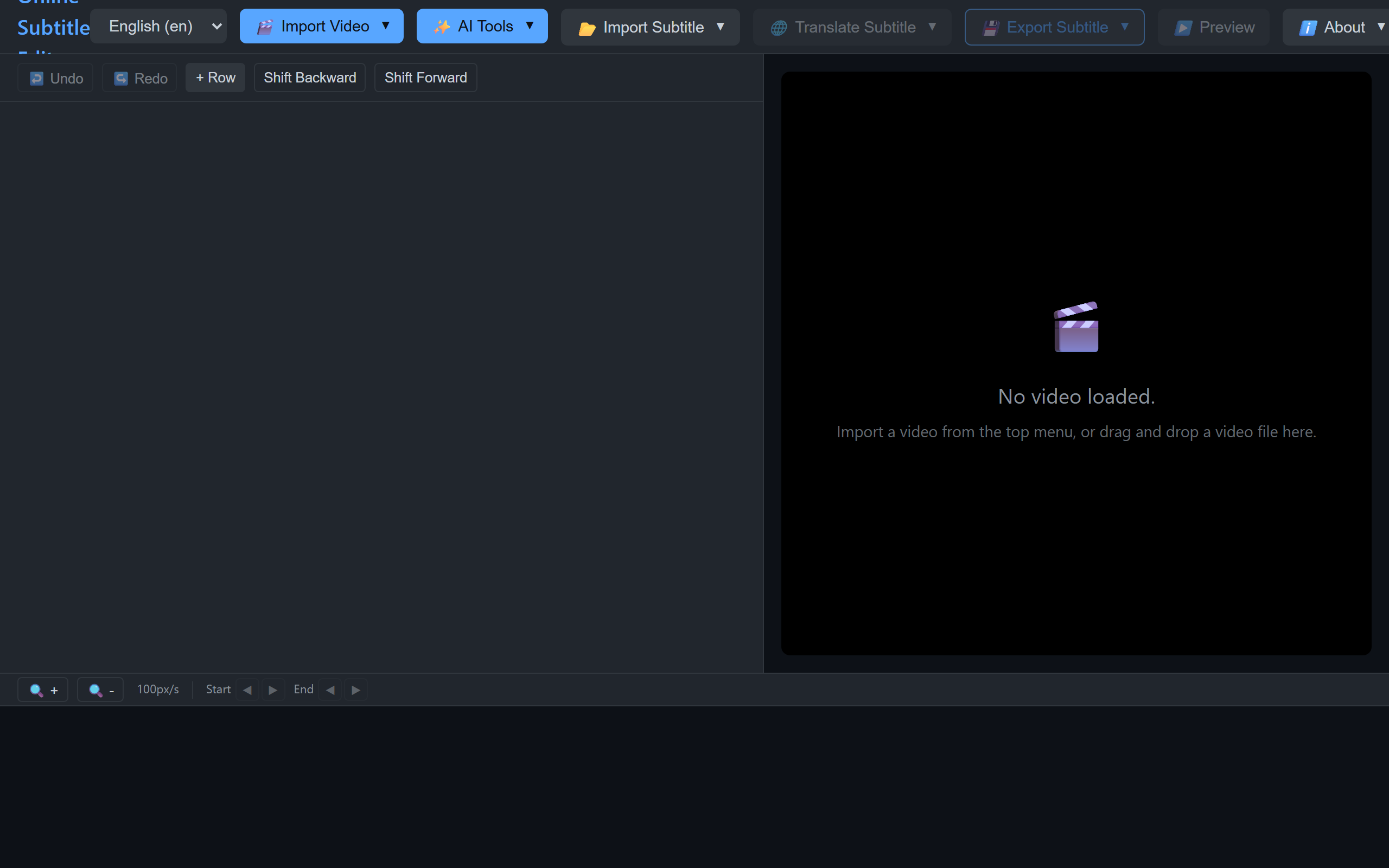 Figure 1: the SubEdit workbench — the toolbar is the workflow
Eight interface languages (EN/ZH/JA/KO/RU/FR/HI and more) switch instantly from the top right.
Step 1: Local Video, Instant Open
Click “Import Video” or drop a file — the video is parsed locally in the browser, never uploaded, consuming no server bandwidth or storage. That principle runs through the whole tool: your footage stays yours. Playback preview starts loaded, with waveform and timeline ready.
Step 2: Where Subtitles Come From — Three Routes
Route A: Import an existing file and refine
SRT/VTT/JSON import lands directly in the table editor: index, start, end, duration, and text per row, double-click to edit.
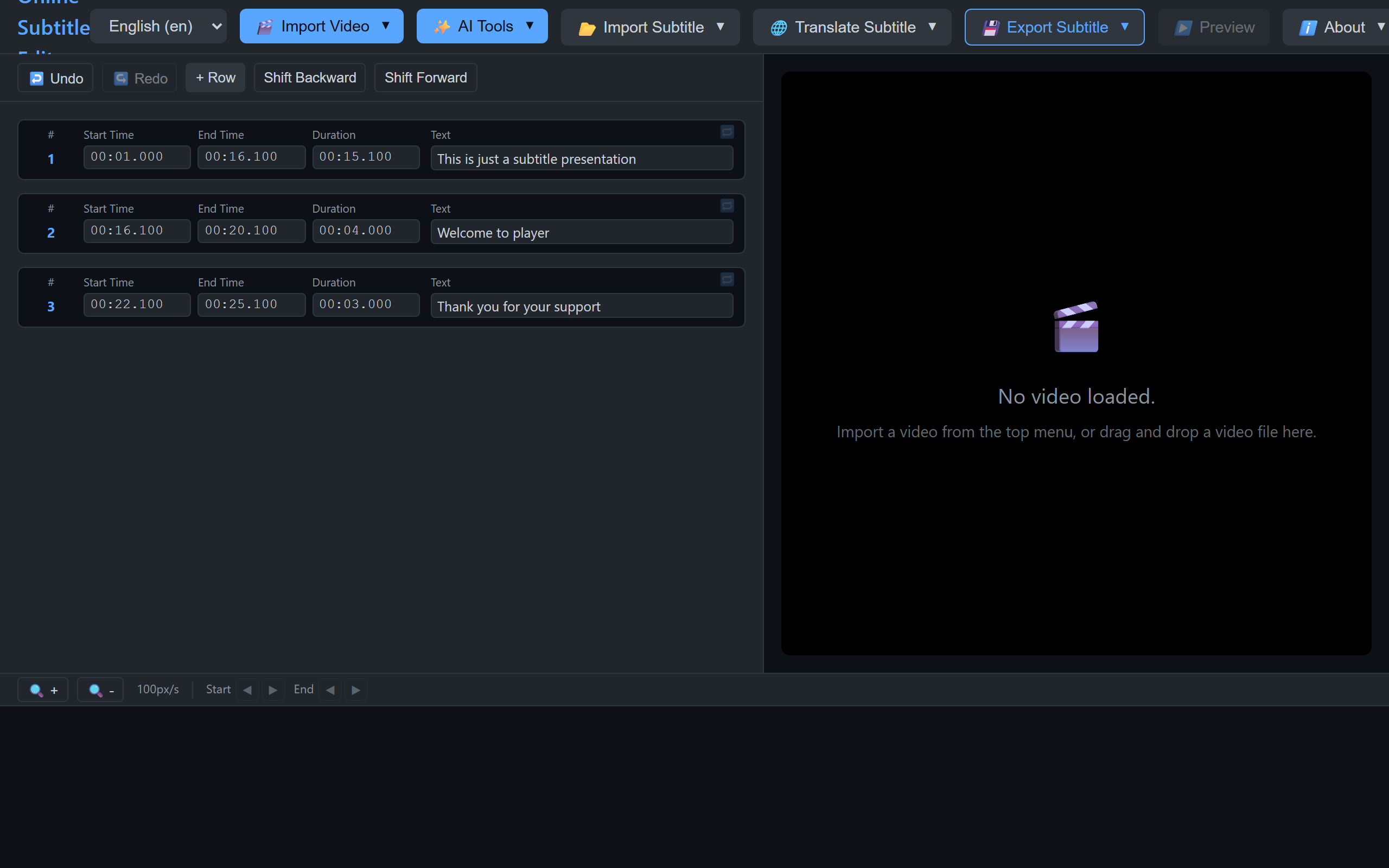 Figure 2: the editing view after importing an SRT — per-row timing and text
Route B: AI speech recognition, pass
“AI Tools” offers transcription: it extracts the audio and returns subtitles already time-coded — transcribing and timing collapse into step. Recognition runs on a backend AI service (DashScope or your own deployment); a 45-minute video returns in minutes, leaving humans to fix proper nouns.
Route C: Manual timing on the waveform
No file and no AI? The waveform view paints the audio track visually — speech are plain to see, and dragging timing marks against a waveform beats stopwatching a player. Global offsets (subtitles uniformly early/late) resolve with the one-click “Shift All” controls.
Step 3: Translate and Proof
“Translate Subtitle” reaches the AI translation service for multilingual output; the translation can be kept as a separate track. Proofing pairs the waveform with playback preview: click a row to jump to its moment, listen and fix. The preview player ships a built-in subtitle style panel — size, color, outline, background, and position preview live while you tune them.
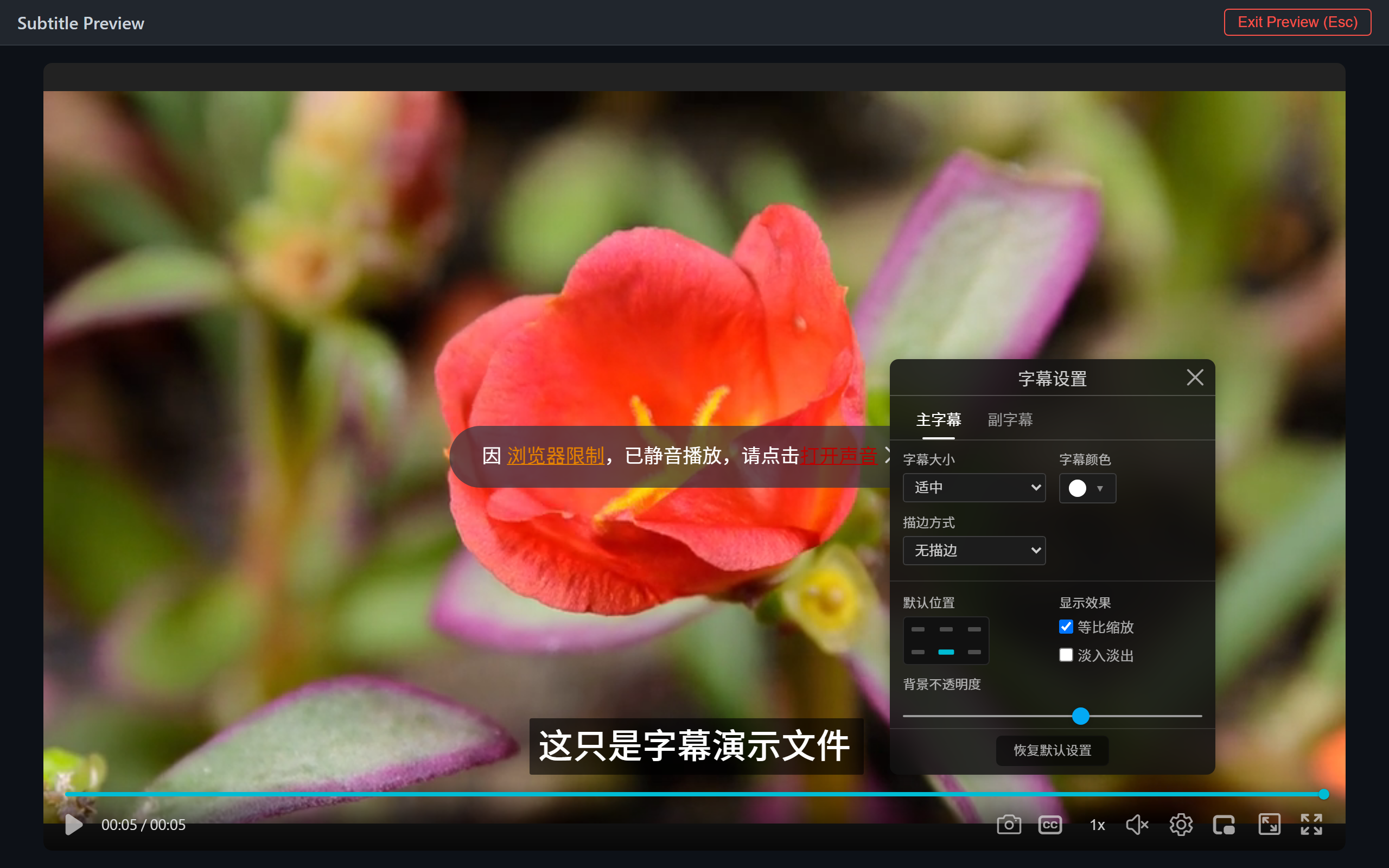 Figure 3: subtitle style settings in the preview player — live tuning of size, color, outline, background, and position
Step 4: Export
SRT/VTT/JSON exports feed:
- ZWPlayer: mount via the
subtitlesconfig; pair with dual subtitle setup for bilingual display; - Editors: Premiere/CapCut and friends all read SRT;
- AI pipelines: the open protocol behind AI subtitle translation.
Deployment: Frontend First, AI Optional
SubEdit is frontend-first:
- Basic editing (import, waveform, timing, export) runs with zero backend, purely in the browser — the technical basis of the “never uploaded” promise;
- AI features (ASR, translation) need the companion backend service — open protocol, model-agnostic, fully self-hostable for teams that keep data on-premise.
Individuals can use the public deployment; organizations self-host front and back for a private subtitle production line.