
Dual Subtitles & External Tracks: SRT/VTT/BCC Setup
Watching a foreign course with the original script and a translation on screen together; shipping a video with subtitles baked in so viewers never hunt for files — two small things many web players cannot do, or do awkwardly. ZWPlayer models subtitles as two parallel tracks: primary and secondary, each independently assignable; showing both is dual-subtitle mode. This article walks the developer config, the viewer-side controls, format support, and the usual gotchas.
The Model: Primary + Secondary
ZWPlayer maintains two subtitle slots: track 1 (primary) and track 2 (secondary). Each can hold any subtitle source; both on screen at is dual display — typically original on the primary, translation on the secondary, styled separately.
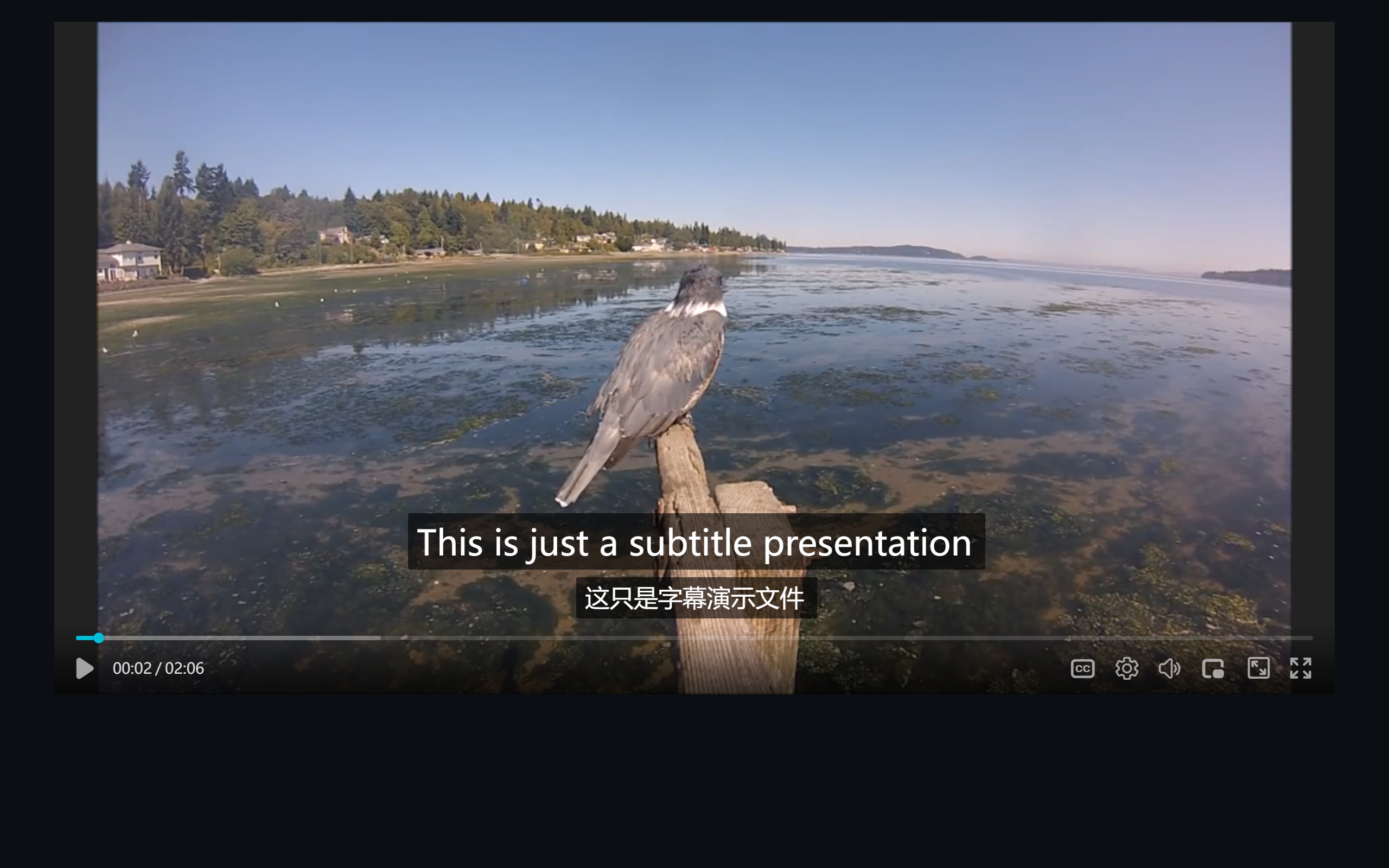 Figure 1: English original (primary) and Chinese translation (secondary) shown together
The payoff is compositional freedom: EN+ZH, JA+ZH, original+annotations — same mechanism; mount track and it is a plain single subtitle.
Developer Side: Three Ways to Mount
Way 1: config, multiple tracks (recommended)
new ZWPlayer({
  playerElm: 'player',
  url: 'https://example.com/lesson.mp4',
  subtitles: [
    { url: 'https://example.com/en.srt', title: 'English' },
    { url: 'https://example.com/zh.srt', title: '中文' },
  ],
});
The subtitles array mounts in order to tracks 1 and 2 — two entries is a ready-made dual subtitle; is a single. title shows in the subtitle menu.
Way 2: Runtime API per track
player.addSubtitle('https://example.com/zh.srt', '2', '中文'); // url, slot, titleFor interactive flows: the viewer picks a language pack, which you mount the secondary track dynamically.
Way 3: Viewers drag their own
Viewers click the subtitle button → “Add subtitle file”, or drop a local SRT straight the player — it lands on the secondary slot without touching your preloaded tracks. Communities that bring their own fansubs use this a lot.
Format Support
| Format | Notes |
|---|---|
| SRT | The most universal format; every tool reads it |
| VTT | Web standard (WebVTT); HLS native |
| BCC | Bilibili’s JSON subtitle format; common in archives |
| JSON | ZWPlayer’s own structure with richer layout info |
| Stream tracks | HLS/DASH embedded tracks join the same list after preload (see HLS/DASH Subtitle Preload) |
Encoding note: save subtitles as UTF-8. GBK-encoded SRT renders as garbage — that is a file problem to fix at the source, not a player compatibility issue.
Viewer Side: The Subtitle Menu
The control-bar subtitle button opens: show/hide, the dual subtitle switch, per-track primary/secondary assignment, add-file, search, and settings.
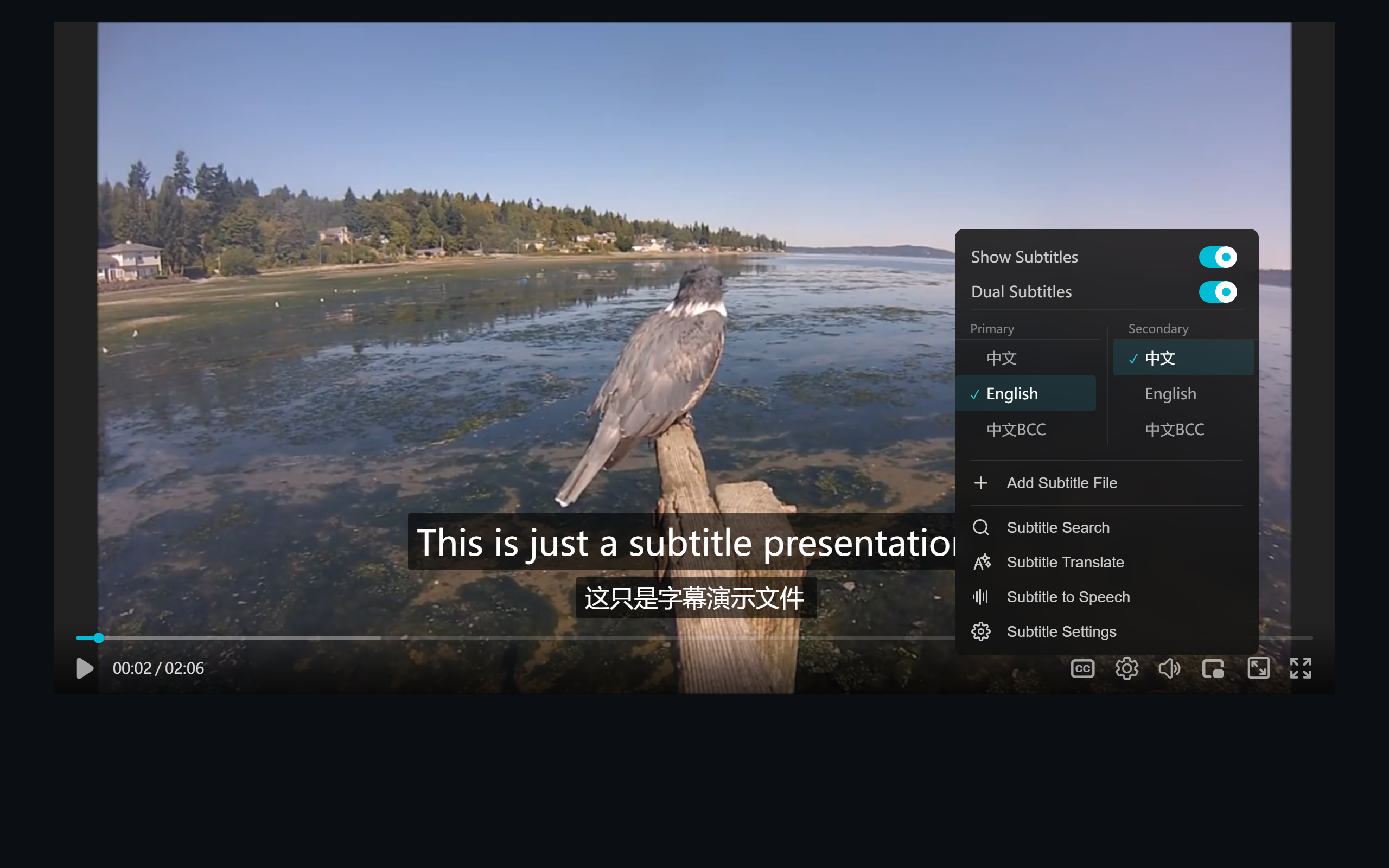 Figure 2: the subtitle menu — each track can be assigned to primary or secondary
Embedded stream tracks appear here too, listed by language alongside external ones:
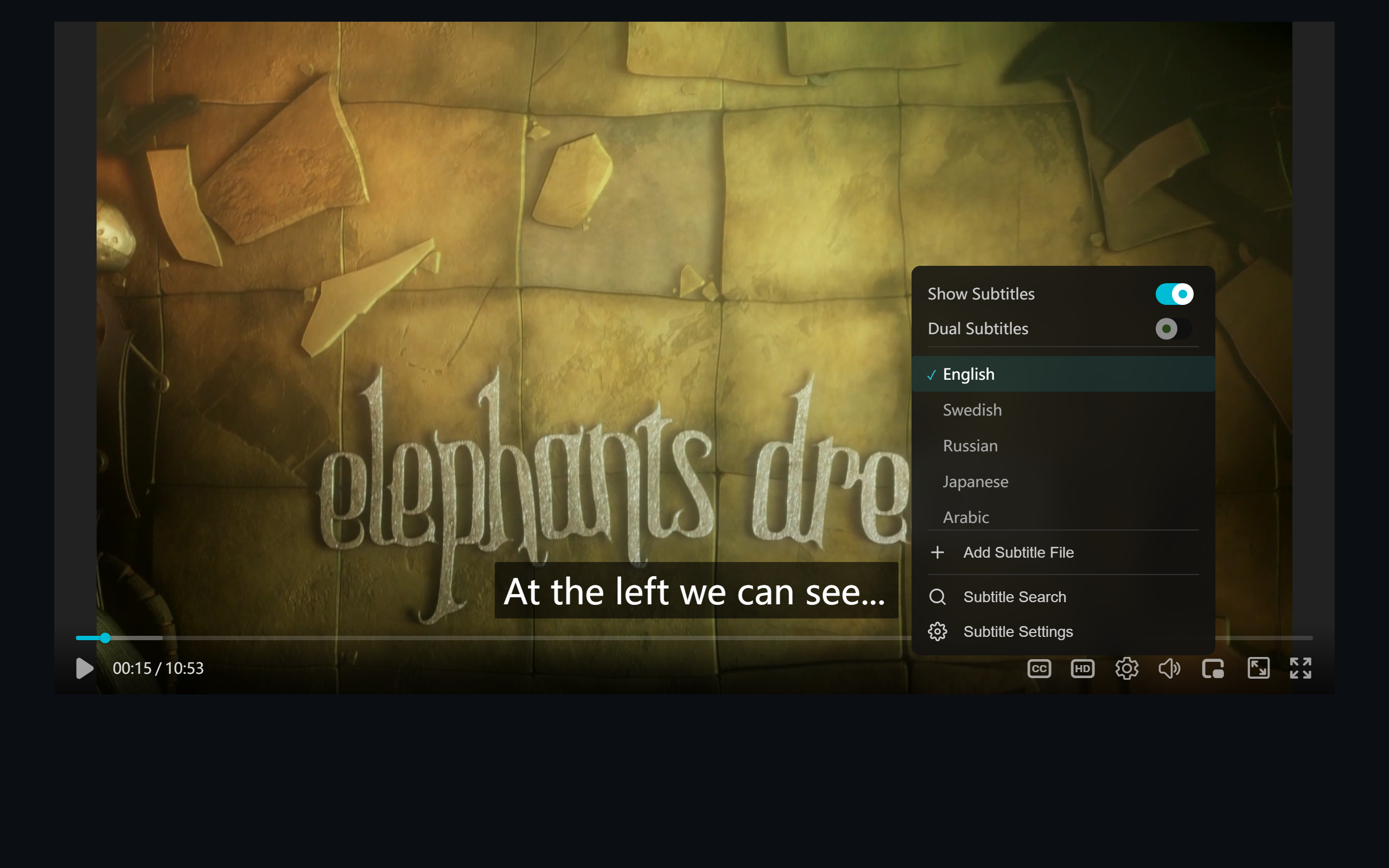 Figure 3: five embedded language tracks from an HLS stream listed with menu actions
Style Tuning
The subtitle settings panel adjusts size, color, outline, background, and position (top/bottom) per track — the classic setup: original smaller on top, translation full-size at the bottom. Every change previews live.
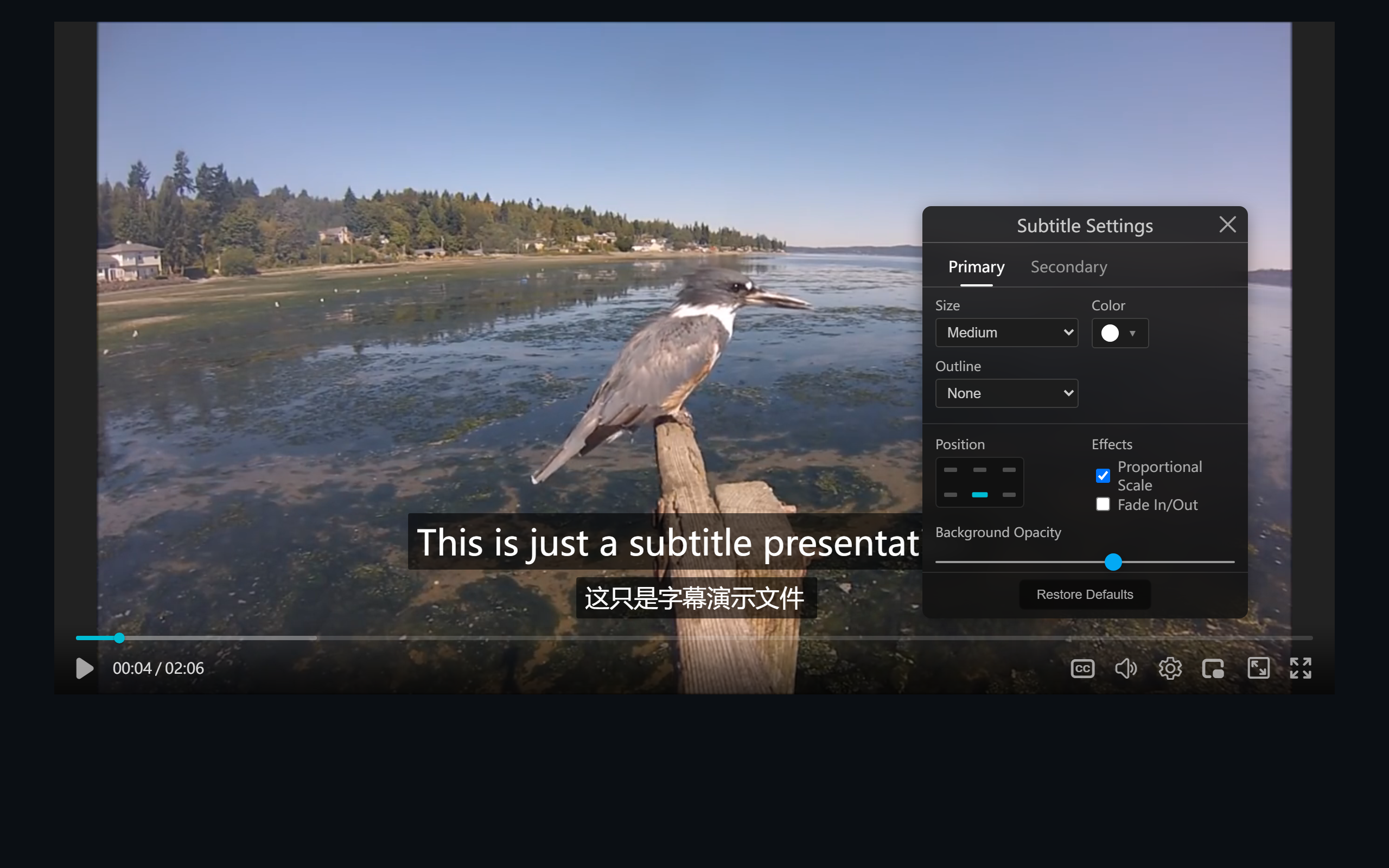 Figure 4: the subtitle style panel — size, color, outline, background, position, per track
FAQ
The two lines overlap? Check whether both tracks sit at “bottom” without enough line height — move to “top” or reduce its font size.
Subtitles mounted but not showing? Check in order: the URL is reachable (network panel), the file is UTF-8, and the timeline matches the video duration (orders-of-magnitude mismatch usually means the wrong video cut).
Can a stream track pair with an external for dual display? Yes. Preloaded stream tracks are equal citizens — primary = stream original, secondary = external translation.
Half a second off? The player has built-in subtitle nudging (0.1s steps via shortcuts, whole-track offset with write-back). No need to re-author the file.