
Multiple Audio Tracks: Dubbing & Language Switching
One course, two language versions — do you render the video twice, or mount two audio tracks? concert recording, director’s commentary versus raw stage sound — can the viewer choose? Multiple audio tracks (
audioTracks) solve exactly this: “one picture, many sounds” — half the storage, and every viewer gets their pick. This article covers the config, the viewer experience, and three scenarios.
The Model: Original + N Tracks
ZWPlayer’s track list combines the original audio (embedded in the video file) with the audioTracks you configure. Each track is a standalone audio file (mp3/m4a etc.); the player aligns playback to the current time and switches seamlessly.
new ZWPlayer({
  playerElm: 'player',
  url: 'https://example.com/lecture.mp4',
  audioTracks: [
    { url: 'https://example.com/dub-zh.mp3', language: 'zh', label: '中文配音', default: true },
    { url: 'https://example.com/dub-en.mp3', language: 'en' },
  ],
});
Field semantics:
url: the audio file (required);language: language code — determines the display name when nolabelis given, localized to the viewer’s UI language (“English” in English, “英语” in Chinese);label: explicit label, takes precedence over the language name (for non-language dimensions like “Director’s commentary”);default: true: select this track initially (otherwise the original audio is default).
Viewer Side: Click in Settings
Once tracks are configured, the control-bar subtitle button dropdown gains an audio section on the left (subtitle options stay on the right): the active track is check-marked; click to switch.
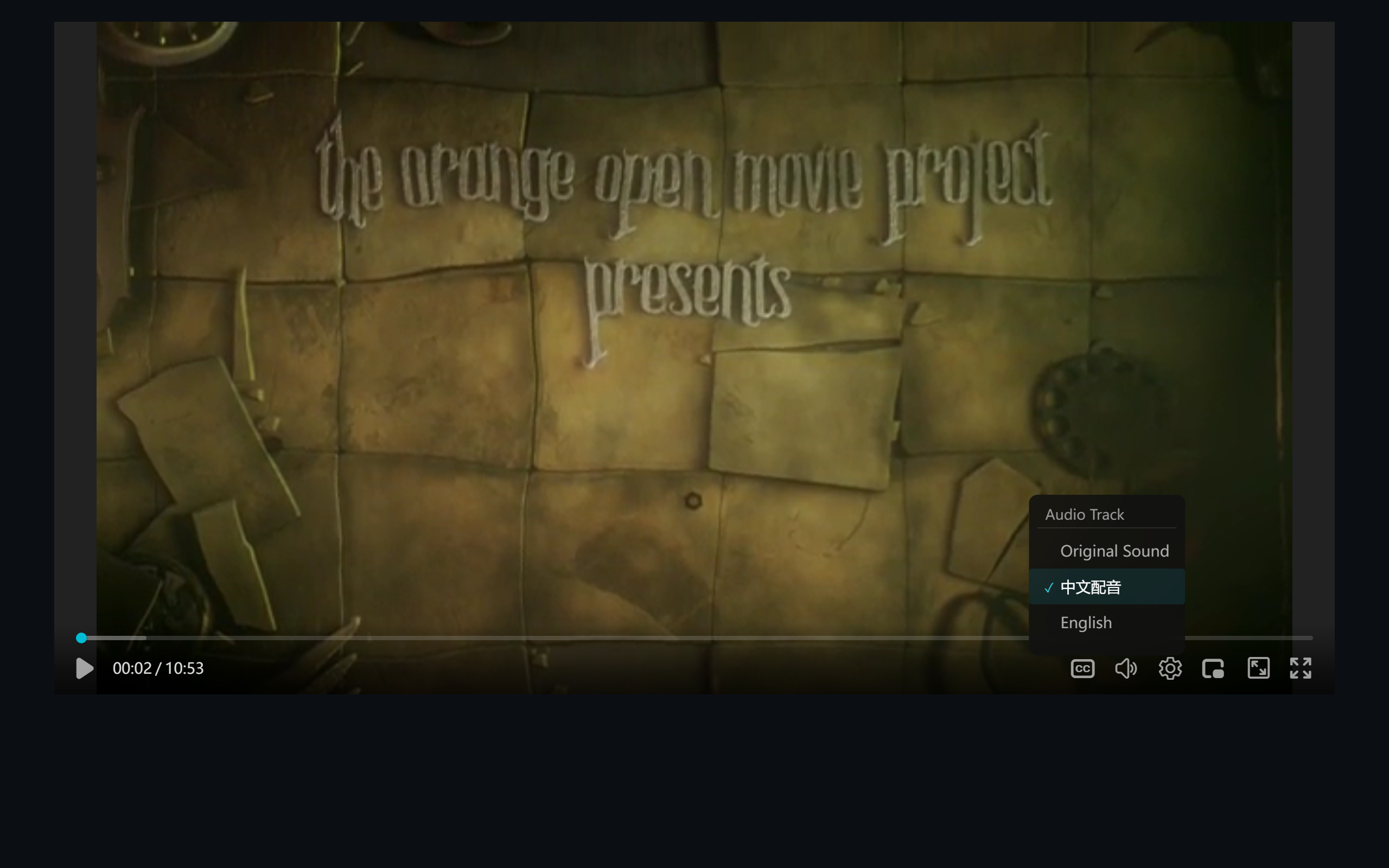 Figure 1: the audio section on the left of the subtitle menu — “Original” active, subtitle options on the right
Switching takes effect immediately — no restart, no lost position. Viewers can sample a dub and jump back to the original anytime.
Three Typical Scenarios
Scenario 1: Multilingual courses (education going global)
One English lecture video, Chinese and Japanese dub tracks, subtitles per language via dual subtitle setup. International students take original audio plus local subtitles; domestic students switch to the dub — video file serves every market, cutting storage and CDN cost by half or more.
Scenario 2: Commentary cuts (content operations)
Theatrical and commentary versions used to mean two videos and split analytics. With tracks: label: '导演解说', the commentary recorded as track, original audio default. Fans re-watch with commentary on — plays, comments, and interactions all pool on a single video.
Scenario 3: AI dubbing (accessibility & localization)
The same speech-synthesis service behind AI subtitle translation can voice a translation track — “translate + dub” fully automated. Generated tracks can carry an AI marker (isAI) so operations can tell human from synthetic.
Practice Tips
- Align durations: dub files should match the video length; commentary may leave silences, but the endpoints must line up;
- Default to the most common, not the most complete: the default experience shapes most viewers’ impression; niche options are click away;
- Pair audio with subtitles: advertise combos (“Chinese dub + Chinese subs”, “English original + English subs”) in the page copy to reduce fumbling;
- Encoding and size: speech tracks are fine at 64–96 kbps mp3/m4a — don’t burn music-grade bitrate on narration.
FAQ
Which formats? Anything the browser plays (mp3/m4a/aac/ogg); mp3 or m4a (aac) recommended.
Does switching rebuffer? No. The track loads at switch time and plays alongside the video; the timeline is untouched.
Can the original be muted out? A configured track replaces the original while active; switching back to “Original” restores the embedded audio.
Live streams? Config-based tracks target on-demand; live multi-audio depends on the protocol layer (HLS EXT-X-MEDIA:AUDIO groups), handled by the engine natively.