
Playlist Editor: Manage Videos, Subtitles & Chapters
Hand-writing JSON for three clips is fine; for thirty course episodes — each with dual subtitles, chapters, and thumbnails — it collapses. A playlist is structured data, and past a threshold data needs tooling. The ZWPlayer playlist editor makes it visual: bulk import, drag ordering, per-entry resources, standard ZWMAP playlist JSON out.
Interface: Three Working Zones
The editor has three zones: the left group & item list (collapsible groups, searchable items), the right detail panel (all properties of the selected entry), and the top toolbar (import/export, bulk operations, undo/redo, preview).
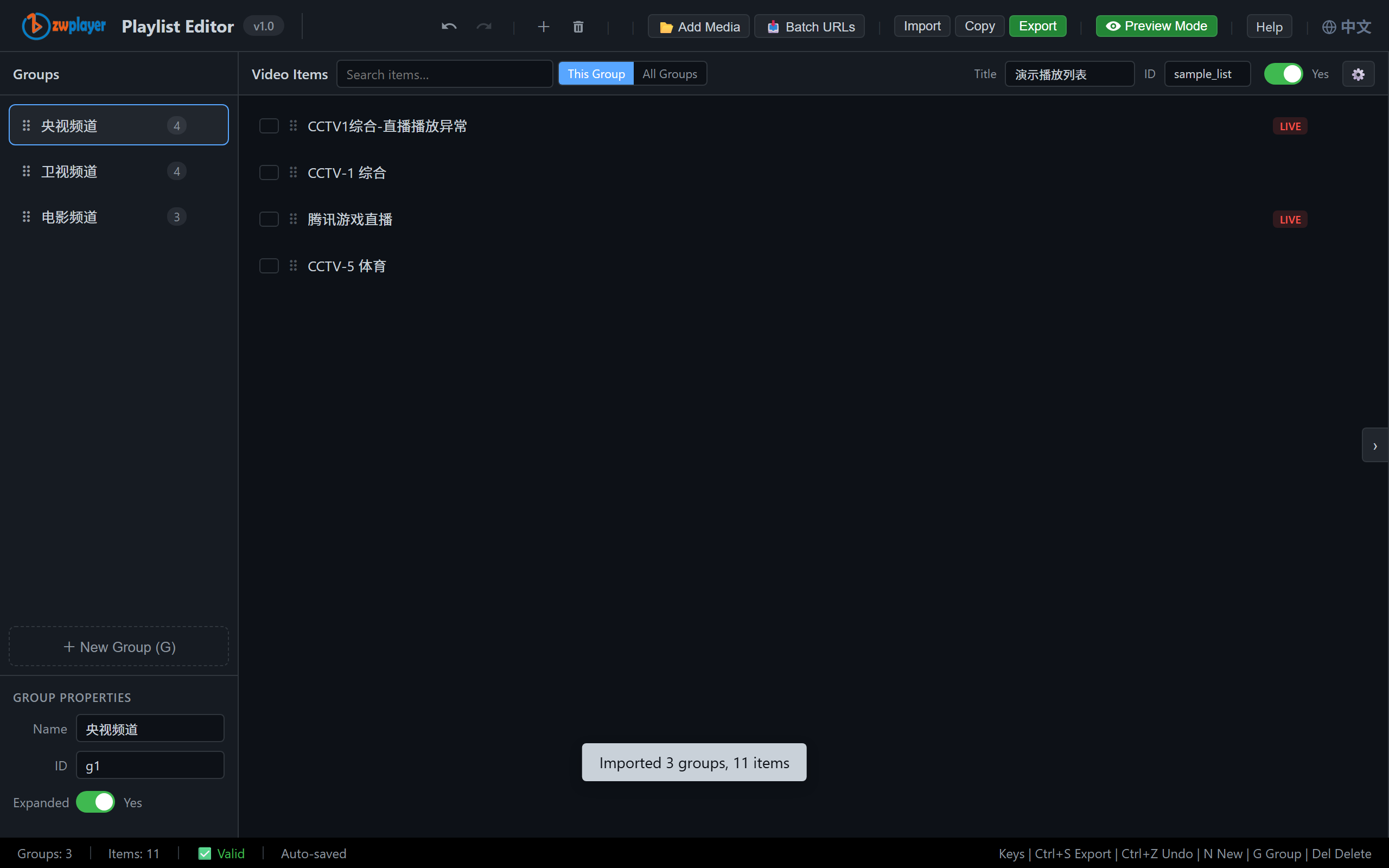 Figure 1: the editor — two groups and five items on the left, detail panel on the right
Step 1: Get the Content In, In Bulk
Three import routes by scenario:
- JSON import: an existing ZWMAP playlist (or a ZWScan scan) loads via Import → File;
- Text bulk import: paste URL per line (or “name,URL”) — dozens of entries in pass, the standard move before a course launch;
- Add item: the button for spot additions.
Imported items fall into their groups; the search box filters by name.
Step 2: Attach Resources Per Entry — The Detail Panel
Select any entry and the right panel unfolds everything configurable: name, URL, type (auto-detected), poster (with thumbnail preview), subtitle tracks (multi-row, URL each), dub tracks, lyrics (LRC), chapters, multi-bitrate sources, live flag.
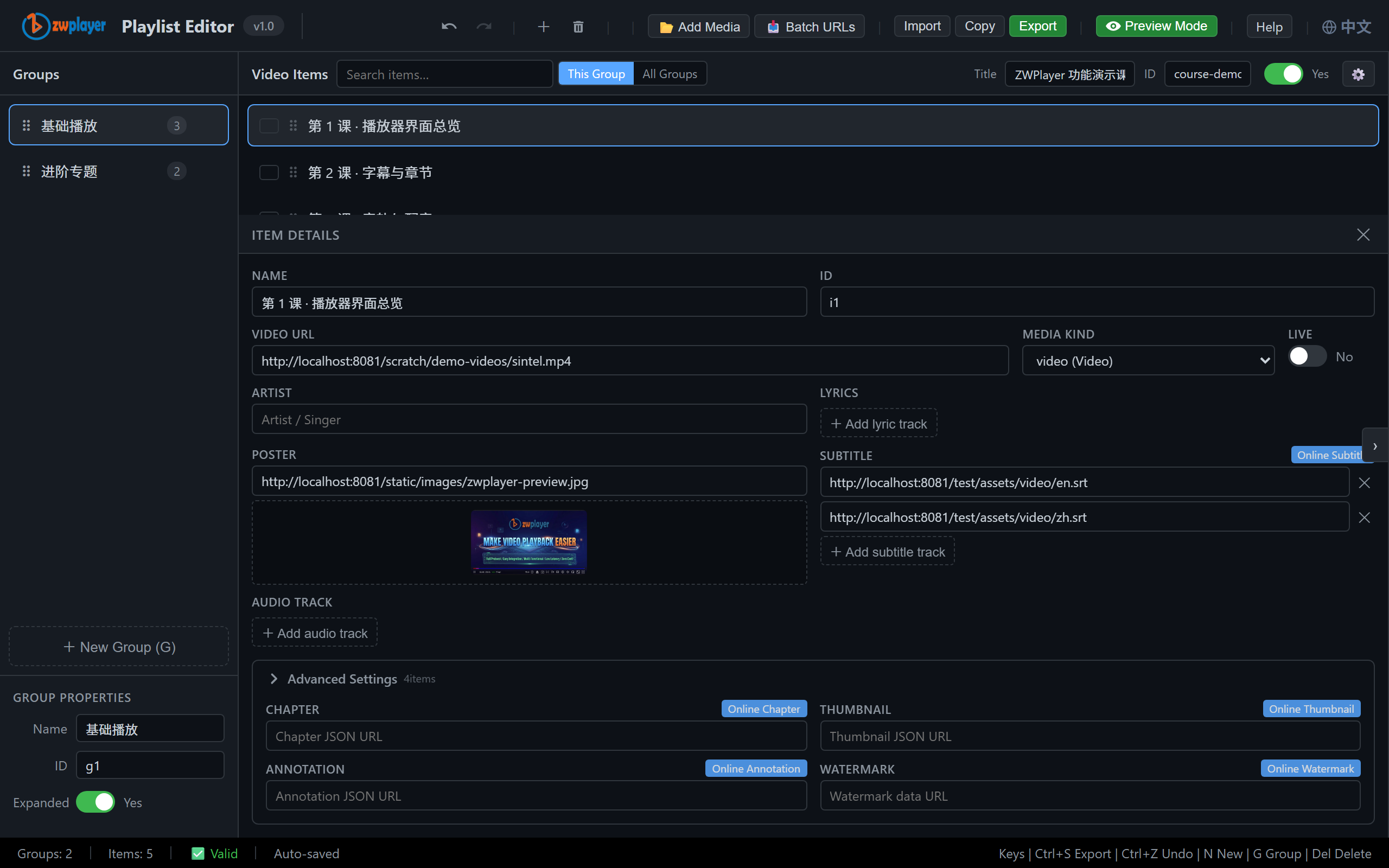 Figure 2: with “Lesson 1” selected, its edit panel appears on the right — poster thumbnail, dual subtitle rows
Resources attached here mount automatically on entry switch — viewers going from lesson 1 to lesson 2 get the subtitles, chapters, and poster carried over, with zero per-episode player config.
Step 3: List-Level Settings
The toolbar’s “Playlist Settings” configures overall behavior: title (the show name atop the list panel), ID, and auto-play next (one episode ends, the next starts).
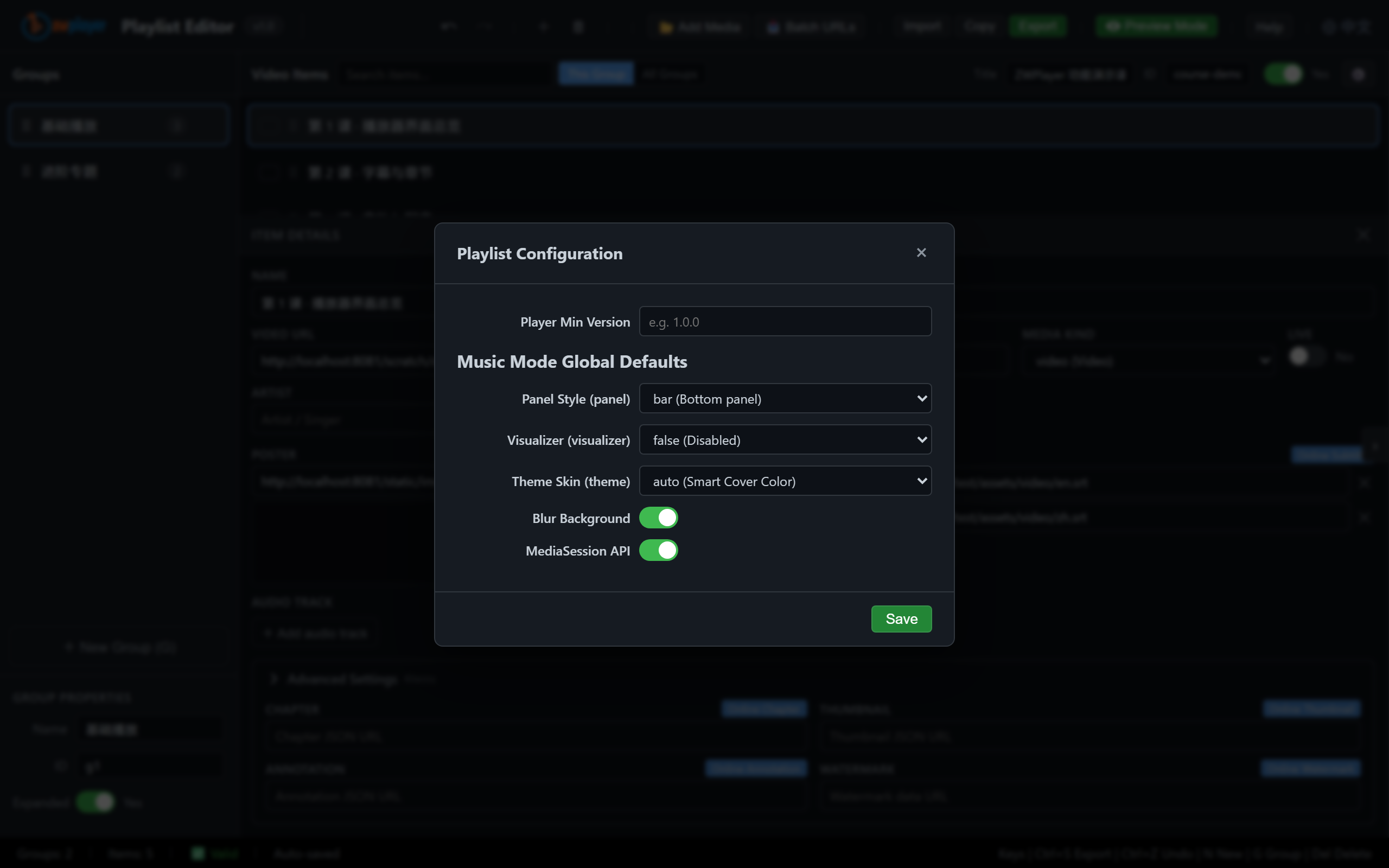 Figure 3: list-level settings — title, ID, auto-play
Import, Export, and Drafts
The JSON panel mirrors the current list as ZWMAP in real time — edit and apply, copy, or export to file; drafts auto-save in the browser, so closing the tab loses nothing.
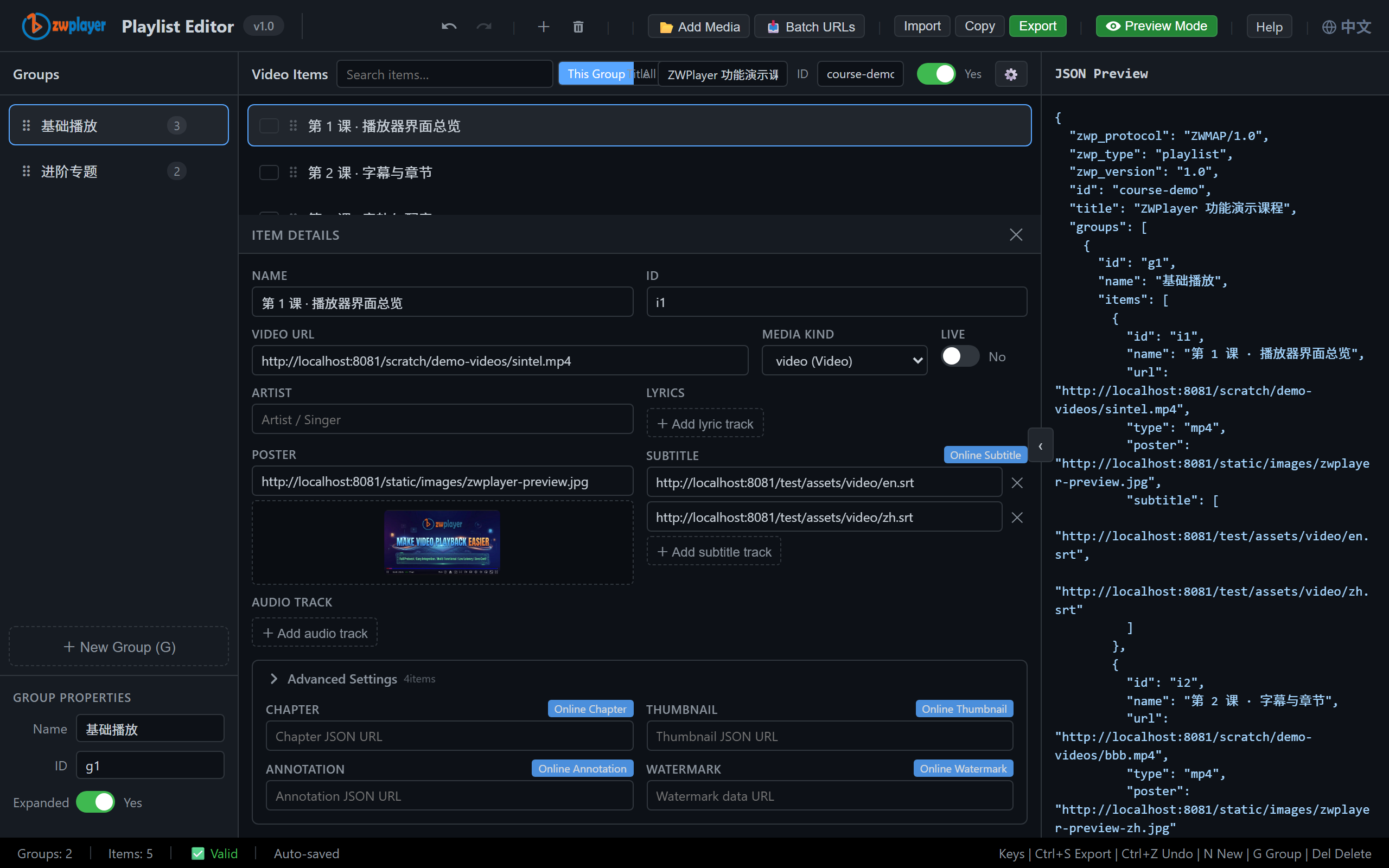 Figure 4: the JSON panel — what you see is the protocol
Preview and the Player Side
Hit “Preview” for a real ZWPlayer fullscreen preview: the list panel (shortcut Q) shows groups and entries — click to switch, auto-advance, and per-entry resources mount on switch. Exactly what viewers get.
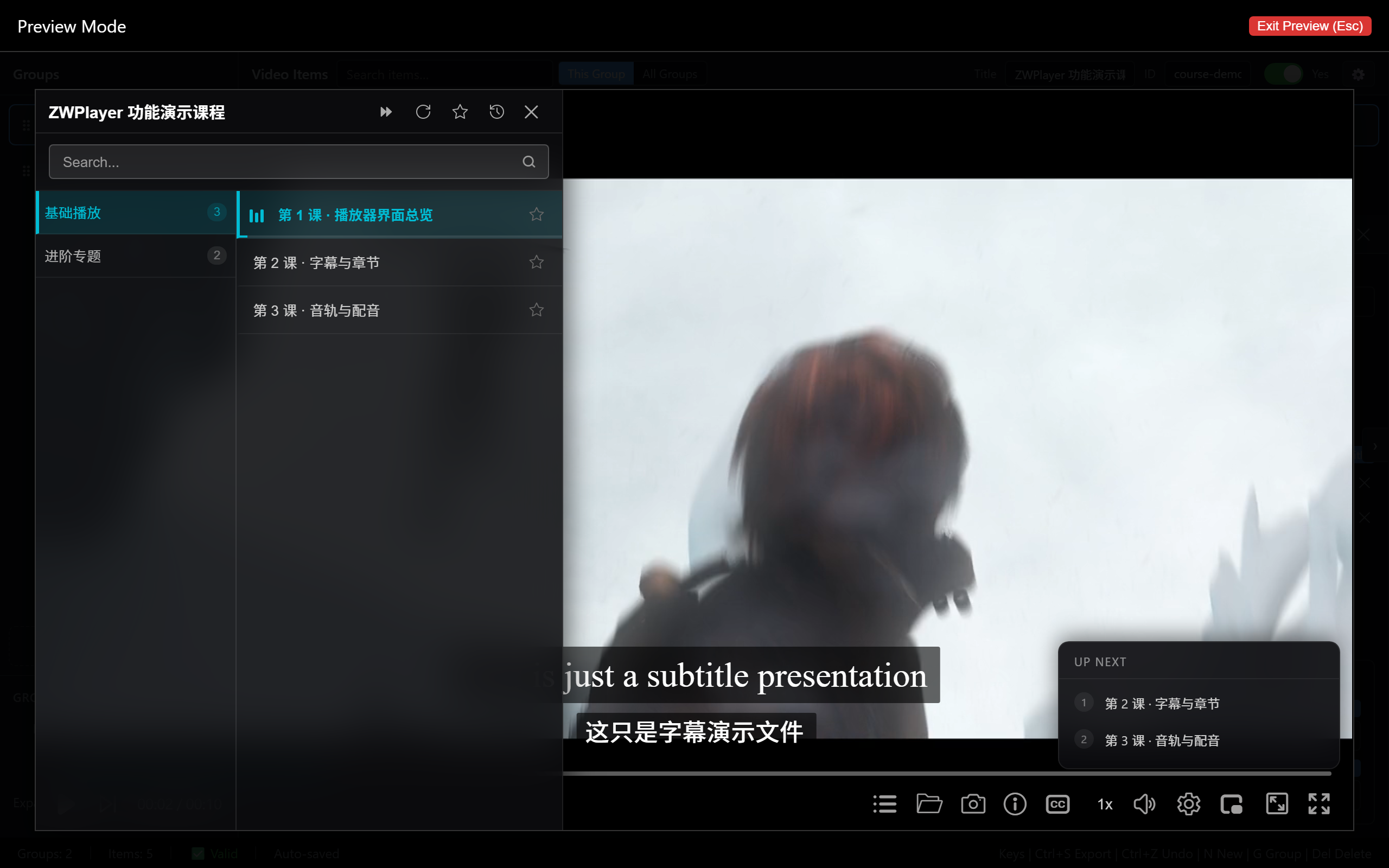 Figure 5: preview — the player’s list panel with the playing entry
Wiring it into your own page is line:
new ZWPlayer({
  playerElm: 'player',
  playlist: '/lists/course.json',   // ZWMAP playlist JSON exported by the editor
});
The player gains the full list experience: next-episode button, list panel, auto-advance, resume position.
The Combo With ZWScan
For local libraries (NAS, teaching material, recording archives):
- ZWScan scans the folder, matching videos with same-named subtitle/chapter files into a first-pass list;
- import into the playlist editor; add posters, tune groups, attach multi-bitrate by hand;
- export the JSON to ZWServe or your CDN.
“Hundreds of files → a watchable site” fits inside coffee.
Typical Scenarios
- Course sites: entry per lesson, subtitles and chapters attached, positions remembered;
- Corporate training: grouped by department, watermarks on every entry against leaks;
- VOD sites: multi-bitrate entries + HLS sources — the list page is the product.
FAQ
Item order scrambled after import? Drag to reorder anytime; order within a group is play order.
Poster not showing? Check poster URL reachability and CORS; the in-editor thumbnail preview is the first validation.
Can I edit the JSON directly? Yes — the JSON panel is the protocol itself; edit and “apply”. For big changes, keep the file in version control and re-import.