
Play 360° VR Video on the Web with Config Line
Drop a 360° video into an ordinary web player and you get a flattened, distorted strip. Rendering it back a sphere takes WebGL projection — usually weeks of work if you build it yourself. Since v3.3.1, ZWPlayer wraps all of that into a single
vroption. This article covers its three forms, three modes, view presets, interaction, and troubleshooting. Copy the code and go.
The Problem First: What Panoramic Footage Looks Like Without VR
360° video is stored with equirectangular projection at roughly a 2:1 aspect. Played flat, you get the “world map” below — all the content is there, but the view is warped and unusable:
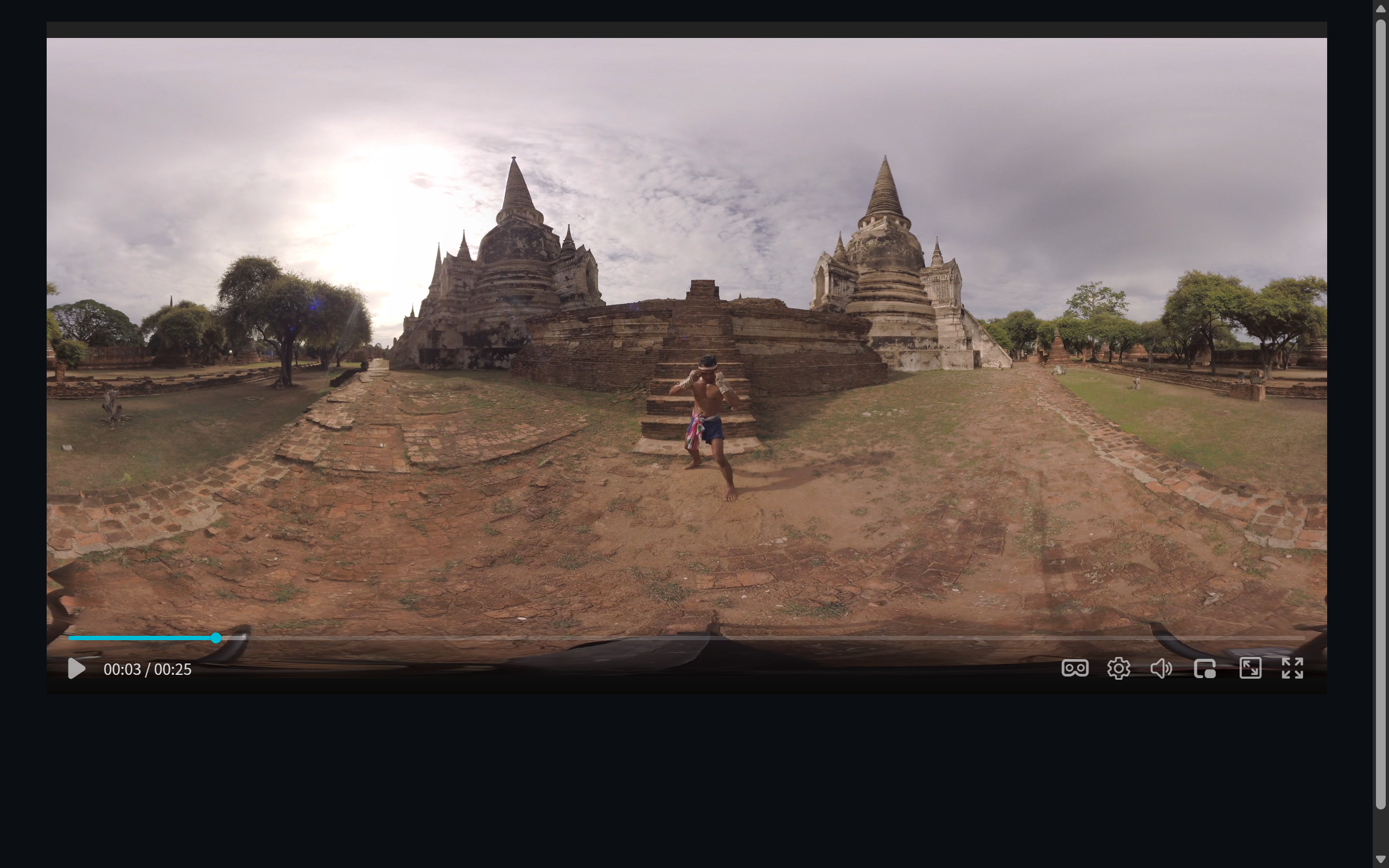 Figure 1: a 2:1 panoramic file displayed as a normal video — flattened and distorted
Enable VR mode and the player maps the frame back the inside of a sphere with the viewer at the center — the natural first-person view (see Figure 1 in How to Choose a VR Video Player).
The Three Forms of the vr Option
const player = new ZWPlayer({
  playerElm: 'player',
  url: 'https://example.com/panorama.mp4',
  vr: true,            // form 1: boolean
});
vr accepts three shapes with distinct semantics:
| Form | Meaning | Use when |
|---|---|---|
vr: true |
Force mode: render as panorama from the start, hide the raw video | The page exists for the panorama (immersive pages, exhibition screens) |
vr: 'auto' |
Auto mode: enter VR when the aspect is ~2:1 (or 1:1 stereo); normal videos stay flat | One page mixes panoramic and normal videos |
vr: { ... } |
Object mode: full control over mode, button, initial view | Recommended for production — see below |
Omitting vr (or vr: false) disables the feature entirely with zero overhead.
Object Mode: Take Full Control
const player = new ZWPlayer({
  playerElm: 'player',
  url: 'https://example.com/panorama.mp4',
  vr: {
    mode: 'auto',       // 'force' | 'auto' | 'manual'
    button: true,       // show the VR button in the control bar
    yaw: 90,            // initial horizontal angle (deg, 0 = forward, positive = right)
    pitch: -5,          // initial vertical angle (deg, 0 = level, positive = up)
    fov: 85,            // initial field of view (deg, 30–100; larger = wider)
    autoRotate: false,  // slow auto-rotate when idle on desktop (great for showcase pages)
    yawOnly: false,     // true locks pitch — horizontal looking only
  },
  autoplay: false,
  controlbar: true,
});
A few semantic details worth spelling out:
mode: 'manual': the VR capability and button are in place, but the viewer decides when to switch on — good when panorama is an easter egg rather than the main course.mode: 'force': equivalent tovr: true— panorama from load, the raw video hidden, no visible “switch”.yaw/pitch/fovare your directorial control: where the viewer looks first is your decision. The default 75° FOV is close to the human eye; smaller is a telescope, larger is a wide angle.
At Runtime: Button, Menu, and Interaction
The control bar gains a VR button with a menu: enable/disable VR, top-bottom stereo toggle, and the VR settings entry.
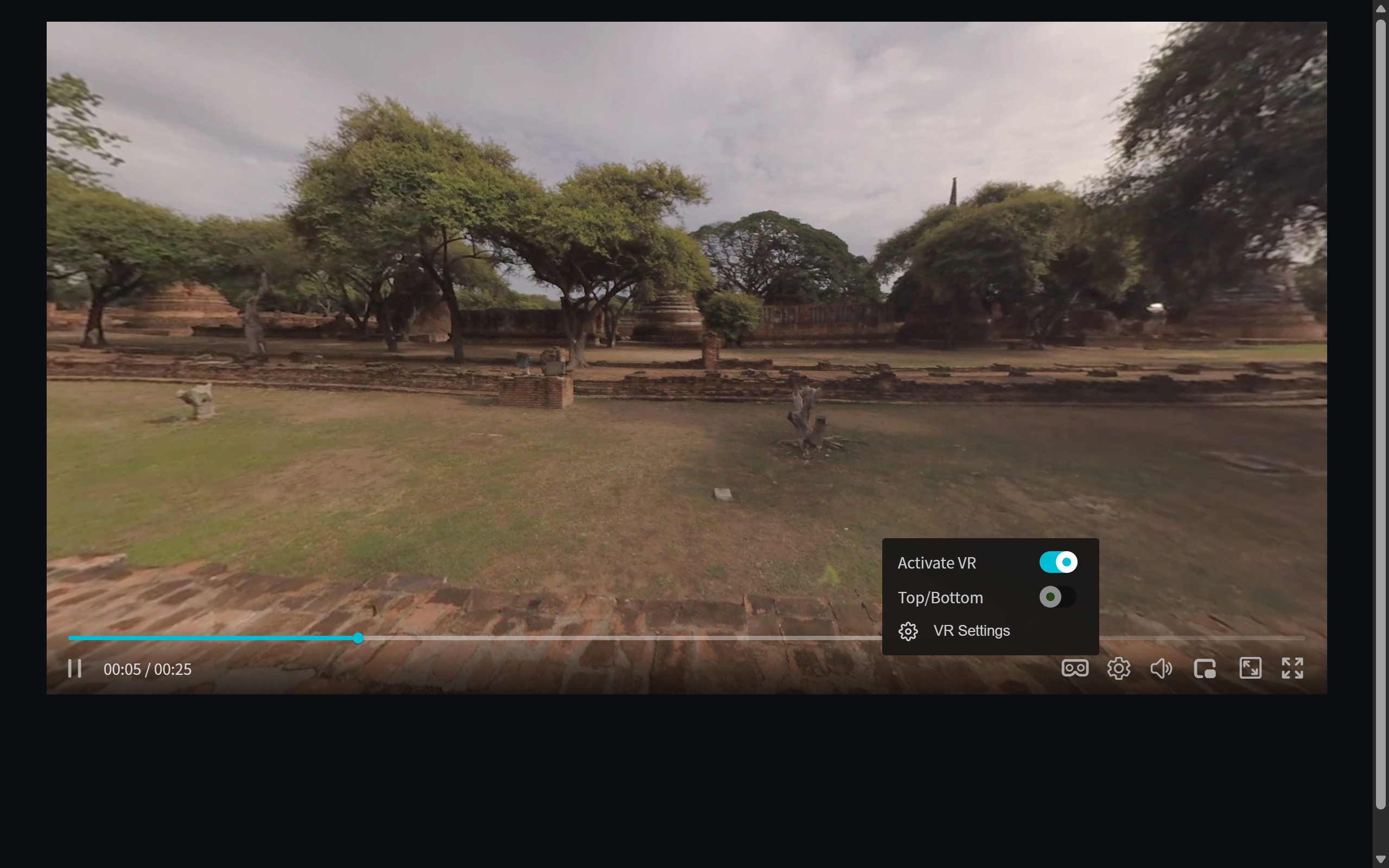 Figure 2: the VR button and its dropdown menu
Interaction inside the panorama needs zero code from you:
- Mouse drag (desktop) / finger swipe (mobile): turn the view;
- Mouse wheel: zoom the field of view.
If your footage has a 1:1 aspect (top-bottom stereo panorama), the player auto-detects and enables stereo rendering; the menu can also switch it manually.
The View Tuning Workflow: Tune, Then Copy
Guessing yaw/pitch/fov values is hopeless — you know where the subject of your scene is you look. ZWPlayer ships a loop that closes it:
- Play the video and open the VR settings panel;
- Drag the sliders (horizontal / vertical / FOV) for live feedback, or drag the scene directly — the panel values sync back in real time;
- Click copy config to export the current view as
vroptions, then paste them into your initialization code.
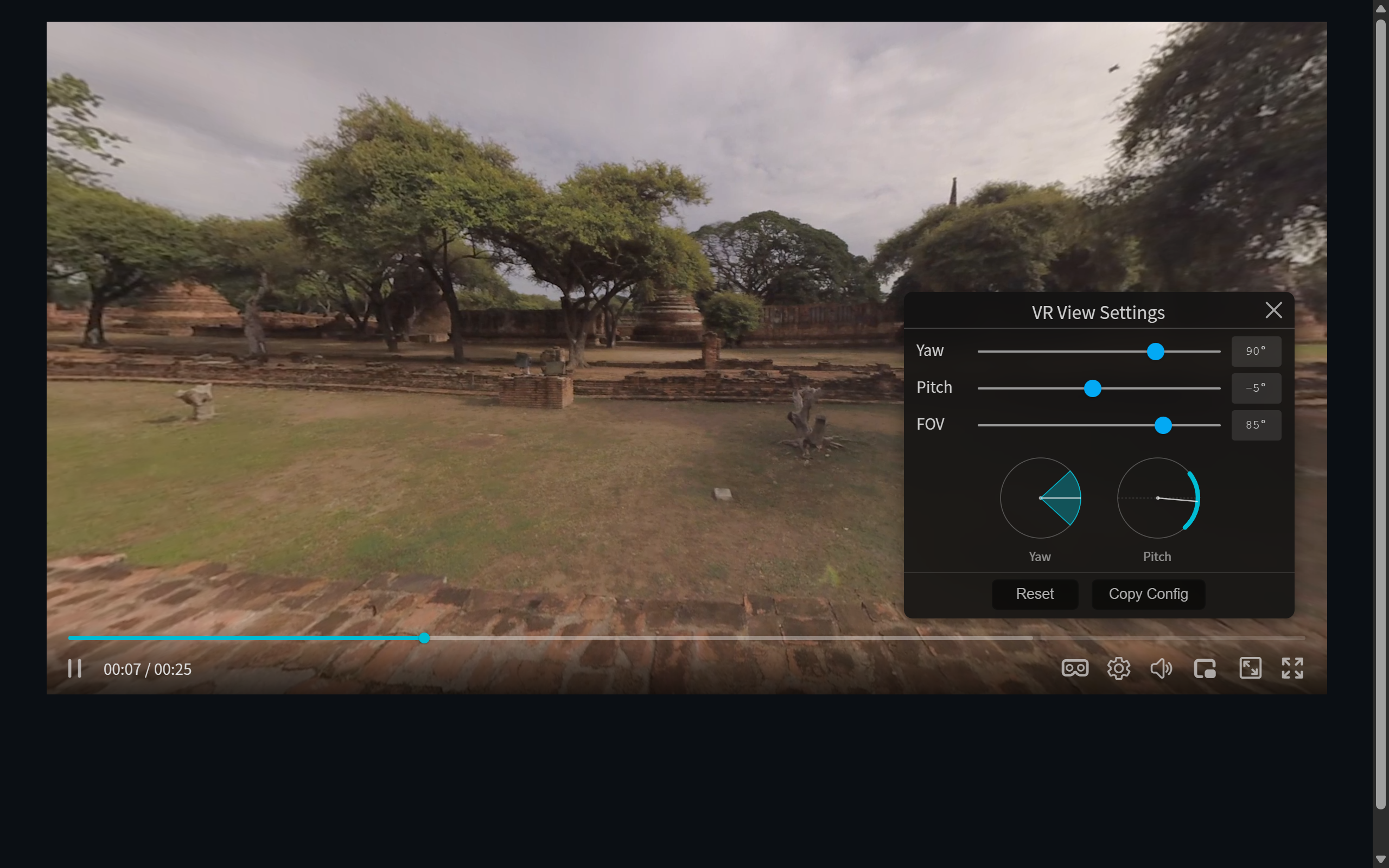 Figure 3: the VR settings panel — sliders adjust the view live, “copy config” exports it
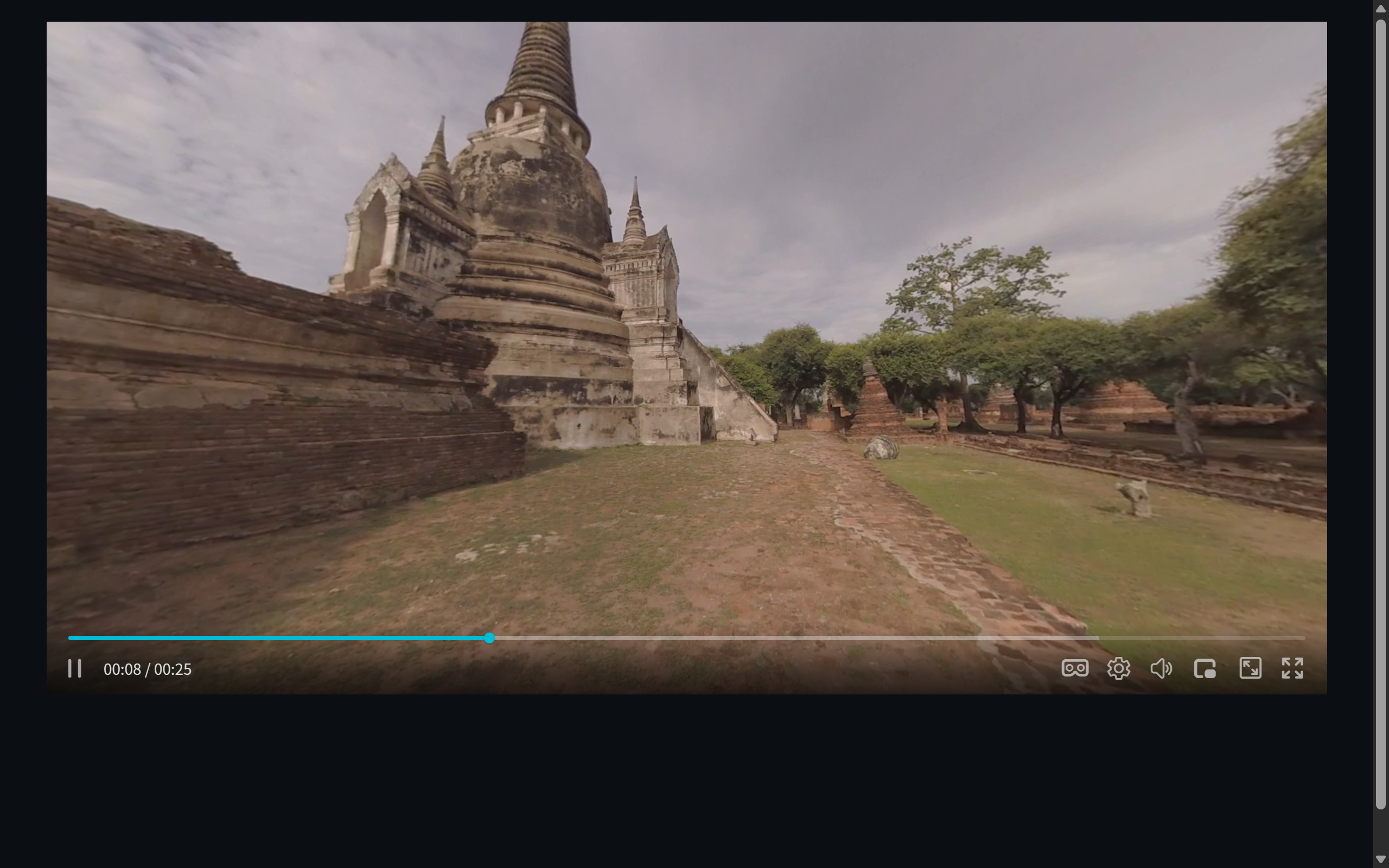 Figure 4: looking up at the sky with a zoomed-in field of view
This “panel-tune → copy → hardcode” loop is an order of magnitude faster than the traditional edit-refresh-edit cycle.
Beyond MP4: Streaming Panorama and Live 360°
VR mode is protocol-agnostic — plain MP4, HLS (m3u8), DASH, FLV, and WebRTC streams can all switch into panoramic view. That unlocks two advanced plays:
- High-bitrate on-demand panorama: 4K–8K files are multi-GB; convert to HLS/DASH chunks for on-demand loading and instant seeking without waiting for the whole file.
- Panoramic live streaming: push 360° over WebRTC or low-latency HLS, and viewers look around while watching — trade shows, sports, scenic slow-TV.
Deployment Must-Reads: CORS and Three Common Traps
Trap 1: black screen with a SecurityError in the console. WebGL video textures require CORS headers (Access-Control-Allow-Origin) on the video source. Add the header on your CDN/server; when you cannot control the origin, front it with a self-hosted proxy (for example ZWCorsProxy). Same-origin deployment avoids the issue entirely.
Trap 2: VR is on but the picture still looks flattened. Check the mode — mode: 'manual' waits for the viewer to click the VR button; if the footage aspect is not ~2:1 (e.g. you cropped it), 'auto' will not trigger either — use force.
Trap 3: the picture disappears while paused. Panoramic texture updates depend on new video frames; some browsers stop refreshing the texture after a long pause and recover on play. For demo scenarios, keep the video playing or looping.
Who Uses It
- Tourism / real estate: scenic and showroom walkthroughs;
autoRotateturns any page into an unattended showcase; - Education: lab demonstrations and historical reconstructions where students choose their own angle;
- Security: fisheye/panoramic camera playback with the distortion restored (see Play RTSP Streams in the Browser for camera ingestion);
- Live events: a 360° camera position plus WebRTC low latency — watch and look around in the browser.