
ZWPlayer Autoplay Complete Guide: Solving No-Sound Issues & Scenario-Based Configuration
1. Summary
When you set autoplay: true for a video but encounter a silent playback situation, it is usually caused by autoplay policy restrictions in modern browsers like Chrome. This article will explain the reasons behind this policy and introduce how to use zwplayer’s configuration options—such as autoplay, muted, and disableMutedConfirm—to configure suitable autoplay behavior for different scenarios like surveillance, advertising, and education.
2. Why is Autoplay Silent? Understanding Browser Policy
To improve user experience and prevent sudden audio interference as soon as a page loads, mainstream browsers such as Chrome and Safari have established strict autoplay policies. Simply put: unless the user has had positive interaction with your website (such as frequent clicks or watching videos), the browser will prohibit videos from autoplaying with sound. For specific principles, please see the Chrome browser autoplay policy.
You can check your website’s “Media Engagement” score by entering chrome://media-engagement in the Chrome address bar. The higher the score, the greater the likelihood of your website gaining permission for “autoplay with sound”.
For the Safari browser, you can authorize the website to autoplay with sound by configuring the website’s permissions. The specific settings are as follows:
[Right-click on address bar] => [Settings for this website] => [Autoplay]
3. ZWPlayer’s Intelligent Solution: Three Scenario-Based Configurations
The zwplayer core detects the browser’s autoplay capability. Developers only need to use simple parameter combinations to easily handle various business scenarios.
Scenario 1: Surveillance Background Stream (No Sound Required)
Applicable Scenarios: Security monitoring, background video looping, silent advertisements, etc. The core goal is to ensure the video image plays automatically and stably and smoothly; sound is irrelevant. Recommended Configuration:
new ZWPlayer({
    autoplay: true,
    muted: true, // Force muted playback to bypass browser restrictions and ensure autoplay success rate.
});
Configuration Interpretation: By actively setting muted: true, you explicitly inform the browser that this video is in muted mode, thereby complying with its autoplay policy and achieving uninterrupted smooth playback.
Scenario 2: Immersive Experience (Sound is Secondary, Smoothness is Primary)
Applicable Scenarios: Corporate website background hero section videos, art showcase pages, etc. Sound adds value, but extreme immersion and a smooth visual experience are more important. Recommended Configuration:
new ZWPlayer({
    autoplay: true,
    disableMutedConfirm: true, // Key setting: Disable the mute prompt popup.
});
Configuration Interpretation: zwplayer will attempt to autoplay with sound. If blocked by the browser, it automatically degrades to muted playback. Additionally, because disableMutedConfirm: true is set, no prompt box will pop up, ensuring the integrity and smoothness of the page experience.
Scenario 3: Main Site Player (Sound is Crucial)
Applicable Scenarios: Online video platforms, news media, educational courses, etc. Here, the video content is the core, sound is crucial, and the user needs to be clearly informed of the current status. Recommended Configuration (Default Mode):
new ZWPlayer({
    autoplay: true,
    // Do not set muted and disableMutedConfirm, use zwplayer's default behavior.
});
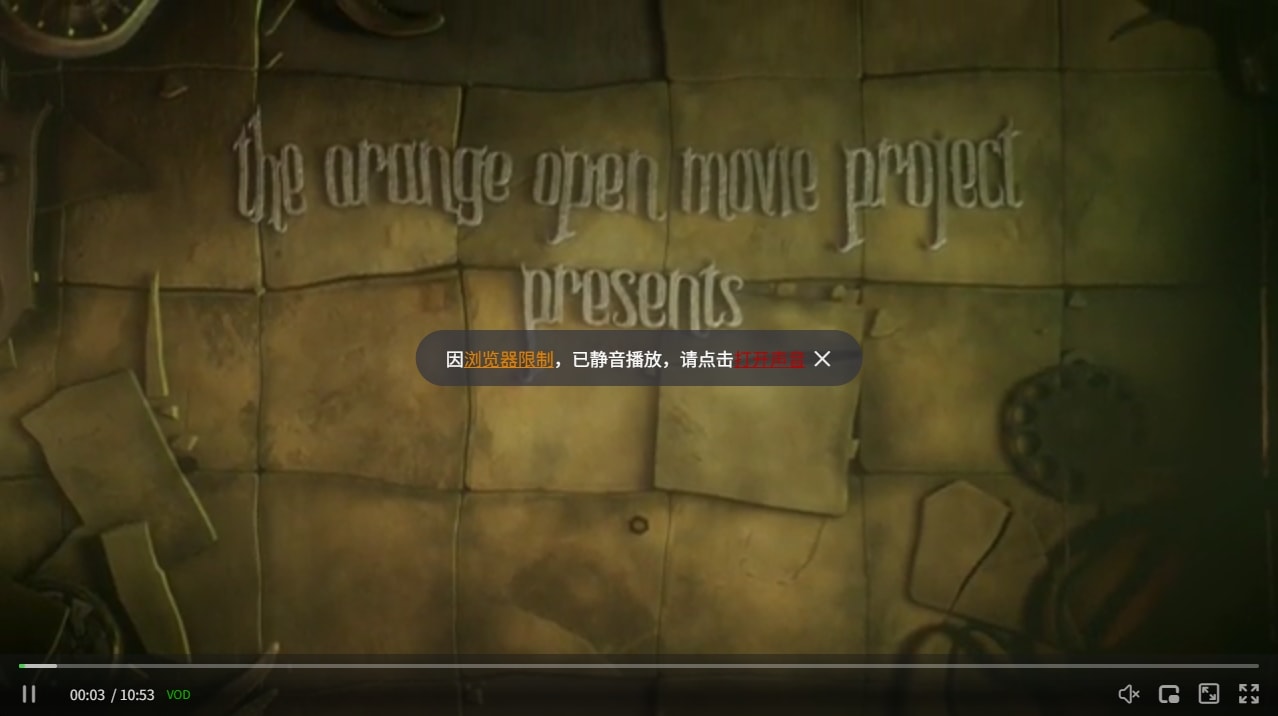
Configuration Interpretation: This is zwplayer’s default recommended mode. If autoplay with sound fails, the player switches to muted playback and clearly pops up a prompt to the user: “Due to browser restrictions, playback is muted. Please click 'Turn on Sound' to enable audio”. This effectively avoids user confusion and allows users to independently restore sound via a one-click operation to gain the complete experience.
The autoplay mute prompt dialog interface is as follows:
-
Click
Turn on Soundto restore audio playback; -
Click the
Closebutton to keep playback muted; -
Click
Browser Restrictionto display the restriction explanation:When you visit this site infrequently or often play muted content, the browser may limit the site's volume, causing the site to fail autoplay with sound.The restriction explanation interface is as follows: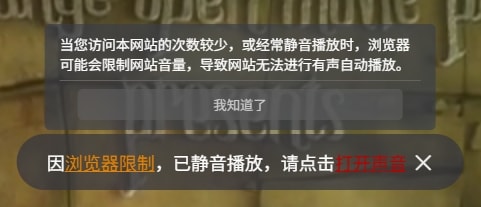
4. Configuration Summary
| Scenario | Core Requirement | Key Configuration | User Experience |
|---|---|---|---|
| Surveillance/Background Stream | Ensure Playback | autoplay: true, muted: true |
Silent but smooth, no interference |
| Immersive Experience | Smooth & Uninterrupted | autoplay: true, disableMutedConfirm: true |
Best with sound, fine without, seamless experience |
| Main Site Content (Default) | Complete Audio/Video & User Awareness | autoplay: true |
Clear status prompt, user can restore sound with one click |
5. Autoplay Degradation Algorithm
ZWPlayer implements a three-phase autoplay degradation strategy internally to ensure the best playback experience across all browser environments.
5.1 Phase 1: Autoplay Capability Detection (PC Only)
When the player initializes, it first detects whether the browser allows autoplay with sound via the checkAutoAudioPlay function. Here’s how it works:
- Creates a very short silent WAV audio clip in memory (10ms, 16kHz sample rate)
- Encodes it as a Data URL and creates an
Audioobject - Calls the
play()method to attempt playback - Has a 500ms timeout protection — if it times out, autoplay is considered disallowed
The detection result is cached in the window.zwpAllowAutoAudioPlay global variable to avoid repeated detection when multiple player instances exist on the same page.
Mobile skips pre-detection: On mobile devices (all browsers on iOS/Android), the player skips the pre-detection entirely and attempts playback directly. This is because a timing race exists between the pre-detection and the actual playback call on mobile, which can cause playback to fail even when detection passes. Mobile devices instead rely on the real-time degradation mechanism during playback (see Section 5.3).
5.2 Phase 2: Autoplay with Sound
If the detection result indicates autoplay with sound is allowed (or on mobile where detection is skipped), the player attempts playback with sound and decides the next step based on the browser’s actual response:
- Browser allows playback → Normal playback with sound
- Browser blocks playback → Enter Phase 3 auto-degradation
- Older browser returns no definitive result → Treated as success
If the player is configured with muted: true, the sound detection is skipped and muted playback begins directly.
5.3 Phase 3: Auto-Degradation to Muted Playback
If autoplay with sound is blocked by the browser, the player automatically degrades to muted playback:
- Automatically mutes the video and syncs the player’s UI mute state
- Attempts muted playback again
- If muted playback succeeds, shows or hides the mute confirmation prompt based on the
disableMutedConfirmsetting - If muted playback also fails, enters the final fallback phase
This real-time degradation mechanism is a core optimization introduced in version 3.3.0. Previous versions relied solely on the pre-detection result to decide whether to mute, and could not handle cases where pre-detection passed but playback was still rejected (common on iOS Chrome). Now, even if pre-detection passes, a playback failure will trigger automatic degradation, significantly improving autoplay success rates.
5.4 Final Fallback: User Interaction Prompt
If even muted autoplay is completely blocked, the player displays a “click to play” prompt, guiding the user to click to trigger playback. In this case, the prompt is always shown regardless of the disableMutedConfirm setting.
5.5 Degradation Flow Diagram
┌──────────────────────────────────────────────────────────┐
│  autoplay: true                                          │
│       ↓                                                  │
│  ┌── Mobile ──→ Skip pre-detection, attempt playback     │
│  │                                                       │
│  └── PC ──→ Detect browser autoplay capability           │
│                    ↓                                     │
│             ┌─ Allowed ──→ Attempt playback with sound    │
│             │                                            │
│             └─ Not allowed ──→ Mute then attempt playback │
│                                   │                      │
│                    Playback result:                       │
│                       ↓                                  │
│             ┌─ Success ──→ Normal playback ──→ ✓         │
│             │                                            │
│             └─ Blocked ──→ Auto-mute and retry           │
│                              ↓                           │
│                  ┌─ Success ──→ Show/hide prompt ──→ ✓   │
│                  │          (per disableMutedConfirm)     │
│                  │                                       │
│                  └─ Failed ──→ Show "Click to Play" ──→ │
│                                  Wait for user interaction│
└──────────────────────────────────────────────────────────┘
6. WeChat In-App Browser Autoplay
The WeChat in-app browser (WebView) has special restrictions on video autoplay. ZWPlayer includes extensive adaptations for the mobile WeChat environment.
6.1 WeChat Environment Detection
The player determines whether it’s running in a WeChat environment by checking multiple characteristics:
- User Agent contains
micromessenger wx.miniProgramobject exists (WeChat Mini Program)window.WeixinJSBridgeobject exists- Enterprise WeChat (UA contains
wxwork) is excluded from WeChat-specific handling
6.2 WeixinJSBridge Playback Trigger
In the WeChat environment, ZWPlayer leverages the WeixinJSBridge API to improve autoplay success rates. The core strategy is to indirectly unlock media playback permissions by calling WeChat’s built-in network status query interface WeixinJSBridge.invoke('getNetworkType'). The complete trigger flow:
- Direct invocation: If
WeixinJSBridgeis ready, immediately callinvoke('getNetworkType')and trigger playback in the callback - Event listener: If the Bridge is not yet ready, listen for the
WeixinJSBridgeReadyevent and trigger after it fires - DOMContentLoaded delay: If the page hasn’t finished loading, wait for
DOMContentLoadedthen delay 200ms before executing - 3-second timeout fallback: If none of the above mechanisms trigger, force an autoplay attempt after 3 seconds
6.3 Special Handling for WebRTC Streams
For WebRTC live streams, there’s a separate autoplay flow in the WeChat environment:
- Triggers playback via WeixinJSBridge
- Listens for the
playingevent to confirm successful playback - Has a 1.5-second timeout protection
- Shows a playback failure prompt on timeout, guiding the user to manually operate
6.4 Handling Regular Videos
For regular video formats like MP4, a different readiness detection strategy is used in the WeChat environment:
- First checks
networkState; if not loaded, callsload()to preload - If
readyState >= 1(metadata available), plays immediately - Otherwise, listens for
loadedmetadataorcanplayevents before playing - Has a 2-second timeout fallback — forces a play attempt on timeout
6.5 WeChat Degradation Strategy
WeChat environment also implements a three-tier degradation, correctly handling the disableMutedConfirm setting:
| Degradation Tier | Behavior | Prompt Policy |
|---|---|---|
| Autoplay with sound | Attempts playback with sound | — |
| Muted autoplay | Retries with muted=true |
Respects disableMutedConfirm |
| Complete failure | Shows user prompt | Always shows prompt |
7. Configuration Parameter Reference
| Parameter | Type | Default | Description |
|---|---|---|---|
autoplay |
boolean | true | Enable autoplay |
muted |
boolean | false | Force muted playback. Setting to true bypasses browser autoplay restrictions |
disableMutedConfirm |
boolean | false | Disable the mute prompt popup. Suitable for immersive scenarios where muting shouldn’t disturb users |
8. Conclusion
Browser autoplay policies are a situation developers will face for the long term. zwplayer aims to resolve this complexity through autoplay capability detection, real-time three-phase degradation, mobile timing optimization, and specialized WeChat environment adaptations. The solutions above can help you quickly adapt to different scenarios, and we recommend configuring them according to your specific needs.