
Progress Bar Preview Thumbnail Settings
1. Feature Overview
zwplayer supports displaying video preview thumbnails on the playback progress bar. When the mouse moves over the progress bar, a video frame thumbnail corresponding to that time point is displayed, allowing users to quickly preview video content.
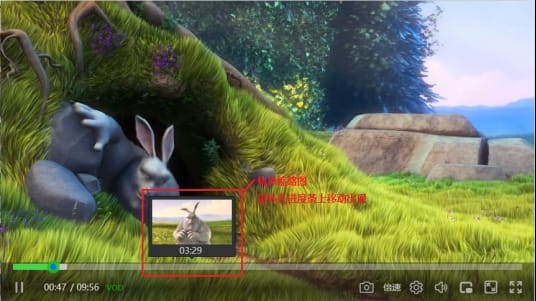
2. Thumbnail Preparation
2.1 Thumbnail Generation Requirements
To implement preview images, you must first extract video frame thumbnails from the video and splice each video frame thumbnail into a single large image, as shown below:
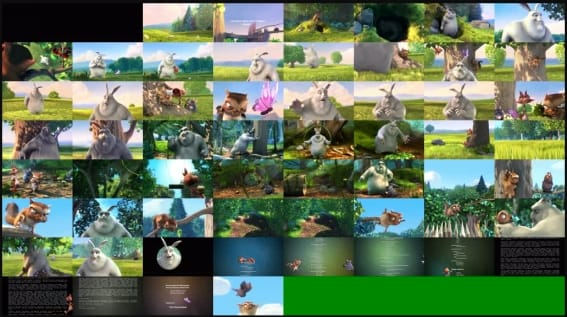
As shown in the example thumbnail above, each extracted video frame thumbnail is spliced into one large image, with 8 small images (video frames) per row and 8 rows in total. Note: Thumbnails extracted from different videos vary, so the number of rows and columns may differ.
Important Notes:
- Thumbnails must be extracted uniformly according to the video timeline
- Time interval per frame = Total video duration ÷ Number of extracted frames
- Not following the extraction rules may result in inaccurate preview time points
- Shorter thumbnail intervals lead to more precise previews but larger file sizes
2.2 Thumbnail Parameter Formats
Thumbnails support the following three input formats:
Format 1: Passing an Object Directly
Configure thumbnail information according to the following JavaScript object format:
var thumbnailInfo = {
    "url": "http://example.com/images/movie_thumbnail.jpg",
    "width": 128,
    "height": 72,
    "col": 8,
    "row": 8,
    "total": 60
}
Format 2: Passing a JSON URL
Save the thumbnail configuration as a JSON file and reference it via a URL:
var info = {
    playerElm: 'mse',
    url: 'http://example.com/vod/movie.mp4',
    useProgressTooltip: true,
    thumbnails: 'http://example.com/thumbnails/movie_thumbnail.json'
};
new ZWPlayer(info);
The JSON file must follow the ZWMAP protocol format (see Section 2.4 below).
Format 3: Passing a ZWMAP JSON Object
Pass a JSON object in ZWMAP protocol format directly:
var thumbnailInfo = {
    "zwp_protocol": "ZWMAP/1.0",
    "zwp_type": "thumbnail",
    "zwp_version": "1.0",
    "thumbnail": {
        "url": "http://example.com/images/movie_thumbnail.jpg",
        "width": 128,
        "height": 72,
        "col": 8,
        "row": 8,
        "total": 60
    }
};
2.3 Parameter Description
Basic Object Parameters:
| Parameter Name | Type | Description |
|---|---|---|
| url | string | Thumbnail access URL (supports JPG/PNG formats) |
| width | number | Width of a single thumbnail (pixels) |
| height | number | Height of a single thumbnail (pixels) |
| col | number | Number of thumbnails per row |
| row | number | Total number of thumbnail rows |
| total | number | Total number of valid thumbnails |
ZWMAP Protocol Additional Fields:
| Parameter Name | Type | Description |
|---|---|---|
| zwp_protocol | string | Protocol identifier, fixed as "ZWMAP/1.0" |
| zwp_type | string | Data type, fixed as "thumbnail" |
| zwp_version | string | Protocol version number |
| thumbnail | object | Thumbnail data object containing the basic parameters above |
2.4 Exported File Naming
When exporting files using a thumbnail generation tool, the naming format is:
- Thumbnail sprite:
thumbnail.jpgorthumbnail.png - ZWMAP JSON file:
{VideoTitle}_thumbnail.json - ZIP package:
{VideoTitle}.zip(containing the sprite and JSON file)
3. Usage Methods
Method 1: Configuration via Constructor
Set the thumbnails parameter directly when initializing zwplayer:
<script language="javascript">
    window.mainplayer = new ZWPlayer({
    url: 'http://example.com/vod/movie.mp4',
    playerElm: '#player-holder',
    useProgressTooltip: true,   // Whether to enable the tooltip on the playback progress bar
    thumbnails: {
        url: 'http://example.com/images/thumbnail.jpg',
        col: 21,
        row: 20,
        width: 128,
        height: 72,
        total: 418
    }
});
</script>
Method 2: Configuration via JSON URL
Host the thumbnail configuration as a JSON file and reference it via a URL:
<script language="javascript">
    window.mainplayer = new ZWPlayer({
    url: 'http://example.com/vod/movie.mp4',
    playerElm: '#player-holder',
    useProgressTooltip: true,
    thumbnails: 'http://example.com/thumbnails/movie_thumbnail.json'
});
</script>
Method 3: Configuration via Media Info Object
Use the thumbnails property of the url parameter in JavaScript object format. This supports direct objects, JSON URLs, or ZWMAP objects:
<script language="javascript">
    var thumbnailInfo = {
        url: 'http://example.com/images/thumbnail.jpg',
        col: 21,
        row: 20,
        width: 128,
        height: 72,
        total: 418
    };
    var movieInfo = {
    "type": "dvr",
    "http": "http://example.com/vod/mp4/uh01.mp4",
    thumbnails: thumbnailInfo
};
    window.mainplayer = new ZWPlayer({
    url: movieInfo,
    playerElm:'#player-holder',
    useProgressTooltip: true,   // Whether to enable the tooltip on the playback progress bar
});
</script>
Method 4: Drag-and-Drop File Loading
Drag and drop the thumbnail JSON file directly onto the player to load thumbnails. The following drag-and-drop methods are supported:
- Drag thumbnail JSON only: Drag the
_thumbnail.jsonfile into the player to load thumbnails for the currently playing video - Drag video and thumbnails simultaneously: Drag the video file along with the corresponding thumbnail JSON + thumbnail sprite into the player; the player will automatically match and load them
- Playlist drag-and-drop: Drag multiple videos and corresponding thumbnail files; they will be automatically matched by filename (e.g.,
video.mp4matchesvideo_thumbnail.json)
Filename Matching Rules:
| Video File | Thumbnail JSON File | Thumbnail Image File | Match Result |
|---|---|---|---|
| movie.mp4 | movie_thumbnail.json | thumbnail.jpg | Auto-match |
| demo.mp4 | demo.json | thumbnail.jpg | Auto-match |
Note: When the
urlfield in the JSON is a relative path (e.g.,thumbnail.jpg), the corresponding image file must also be dragged in. The player will automatically parse and use the local image.
4. Important Notes
- Set
useProgressTooltipto true to display thumbnails on the progress bar - Ensure thumbnails are distributed evenly along the timeline to guarantee preview accuracy
- Balance the number of thumbnails (precision) and file size based on actual needs
- In the ZWMAP JSON format, the
colfield corresponds torow(rowsize) internally in ZWPlayer; the player handles the conversion automatically - The thumbnail generation tool is available at Online Thumbnail Generator